Node Configurations
Overview
This article provides information about Subledger Nodes, key organizational units in Fynapse.
What Is a Subledger Node?
Subledger Nodes represent the key organizational units at which accounting is controlled and reported. A Subledger Node can represent e.g. an entity, a product, etc. Subledger Node fields are defined on the Journal Line Definition screen.
The diagram below shows possible Node combinations for a system with two defined Subledger Node fields, where one represents the Entity and one a Product.
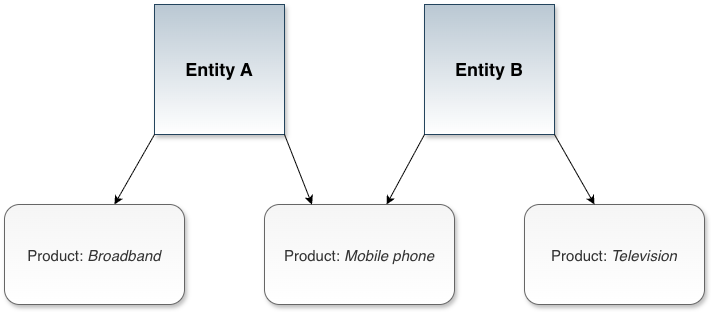
Based on the example above, you can create a configuration for four Nodes:
- Configuration One: Entity A, broadband
- Configuration Two: Entity A, mobile phone
- Configuration Three: Entity B, mobile phone
- Configuration Four: Entity B, television
Each Node Configuration has to be unique.
The Node Configuration screen allows you to create combinations of Nodes, like shown above, and assign them Settings and Accounting Bases.
Grace Period
The days at the start of the current period, when the prior period is still open, are called “Grace Days”. During this time transactions incoming for the previous period can still be posted.
You can configure the grace period on the level of Subledger Nodes on either Node Configurations or Accounting Bases screens.
The grace period always consists of working days.
You can set a grace period of up to 31 days 23 hours. This is different from the manual opening of closed periods described below.
For more details on grace periods and Business Date, refer to Business Date Configuration.
Manually Opening Periods
When you manually open a closed period, you have to set up grace days for this temporarily open period. These grace days are only in effect one time for this particular period.
You can manually set a grace period of up to 4 days 23 hours.
For more details on manually opening periods, refer to Period Locking.
Posting Date Override
Based on the Posting Date, the system determines whether a Business Event can be posted into a period.
Posting Date override is applicable only for Business Events that have been ingested into Fynapse but errored in the course of processing in the Accounting Engine. If a Business Event is ingested after the relevant period is closed an error will be thrown and Fynapse will not apply Posting Date override.
Starting from release 2024.3.2 you have the option to enable enhanced Posting Date override using a feature flag. With this enhancement, the override is applied straight away if a Business Event is ingested with a Posting Date falling on a closed period, so the Business Event does not require reprocessing and generates no errors due to a closed period.
Fynapse allows you to override the Posting Date for Business Events on the level of a given Subledger Node.
When you enable override, it is in effect for all applicable Business Events, i.e. Business Events that have been errored due to any reason other than a closed period and are waiting for reprocessing.
This means that Business Events errored due to a closed period are not subject to Posting Date override.
If the Business Event after successful reprocessing, i.e. the original cause the Business Event was errored was removed, has the Posting Date fall into a closed period, this date will be overridden, based on the selected setting, to:
- The first day of the current period
- Current Business Date
Example:
In this example, November 1st is a non-working day due to a national holiday. Therefore the 1st working day of the Nov 1 - Nov 30 period is Nov 2nd.
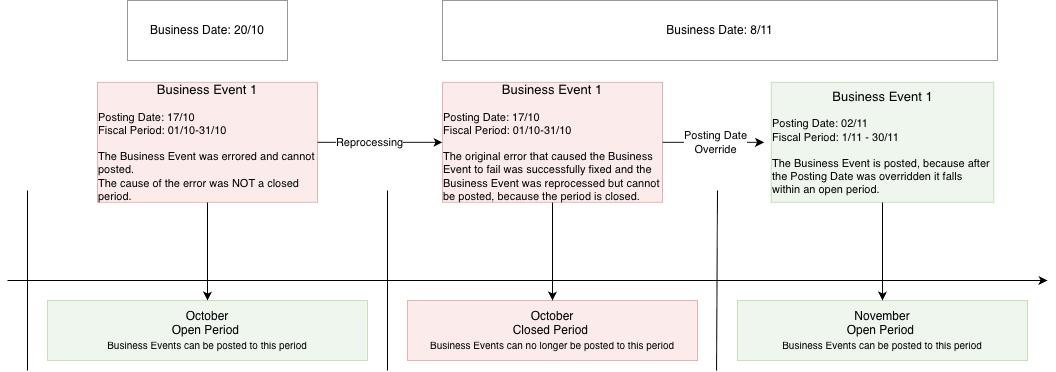
For more details about reprocessing, refer to Business Event Definition, How Do I Know a Business Event Is Failed? section.
For more details, about Business Date, refer to Business Date Configuration.
Node Configuration Screen
To go to the Node Configuration screen, go to Configuration > Accounting Configuration > Node Configurations. You will be redirected to the Node Configuration screen. The Node Configuration screen comprises of a grid with existing Node Configurations, which can be filtered using the filtering options in the grid columns. On the screen, you can also create a new Node Configuration or edit/clone an existing one.
To view the details of a Node Configuration, left-click the Node Configuration in the grid. A details section will open on the right-hand side of the grid. There in the Node Settings section, you can see the details, such as Time Zone.
Below the Settings section is an Accounting Bases section, which lists the Accounting Bases to which the Node Configuration is assigned and the associated Grace Period. If you click Accounting Bases, a new tab will open in the web browser with the Accounting Bases details.
The Node Configuration screen also has the Refresh button, available above the grid and in the Details window. It allows you to refresh the data on the screen and see if other users added new Node Configurations or made changes to existing ones.
Tutorials
How to Create a Node Configuration?
Prerequisites:
- To create a Node Configuration, you have to have a Journal Line Definition already defined. If you do not have a Journal Line Definition created, an error message informing you that there is no existing Journal Line Definition will appear when you open the Node Configuration screen.
- You have to have values specified for each of the Subledger Nodes configured in the Journal Line Definition. If you skipped this step when creating the Journal Line Definition, go to How to Add a New Value for a Subledger Node?
- Go to Configuration > Accounting Configuration > Node Configurations.
- Click the Add button. An editing section will open on the right-hand side of the screen.
- Select the values for your Node Configuration. The Nodes and Node values available in this section have been defined on the Journal Line Definition screen. For more details, refer to Journal Line Definition.
- Select the Settings for your Node Configuration.
- Click the Add button in the Accounting Bases section to add an Accounting Bases. A list of the available Accounting Bases will appear.
- You can optionally set the days and hours of the Grace Period.
The Grace Period always consists of working days.
You can set a Grace Period of up to 31 days 23 hours.
- You can optionally set the override for Posting Date to the first day of the current period.
The Current Business Date will be set automatically to a value defined in Configuration > System Settings.
- If you enabled support for multiple currencies you will have to provide the Functional Currency. For more details, refer to Multiple Currencies.
- You can optionally set the days and hours of the Grace Period.
- Click the Save button to save the Node Configuration, or the Cancel button to discard your changes.
How to Edit a Node Configuration?
- Go to Configuration > Accounting Configuration > Node Configurations.
- Left-click a Node Configuration you want to edit. A details section will open on the right-hand side of the grid.
- Click the Edit button. You can change the Node values, Node Settings, or the Accounting Bases assigned.
- Click the Save button to save the Node Configuration, or the Cancel button to discard your changes.
How to Clone a Node Configuration?
- Go to Configuration > Accounting Configuration > Node Configurations.
- Left-click a Node Configuration you want to clone. A details section will open on the right-hand side of the grid.
- Click the Clone button. You can change the Node values or its settings.
Remember the name has to be unique. If you try to save a Node Configuration with the same name as an existing Node Configuration, an error will occur and your changes will not be saved.
- Click the Save button to clone the Node Configuration, or the Cancel button to discard your changes.
How to Add a New Value for a Subledger Node?
- Go to Configuration > Accounting Configuration > Journal Line Definition.
- Choose a Subledger Node and click the hamburger icon.
- In the pop-up window, press Enter to go to a new line, type the value for the Subledger Node.
- Click the Save button to save the Subledger Node, or the Cancel button to discard your changes.
- Go to Configuration > Accounting Configuration > Node Configurations.
- The new value is available in the drop-down list for the Subledger Node.
How to Delete a Node Configuration?
- Go to Configuration > Accounting Configuration > Node Configurations.
- Left-click a Node Configuration you want to delete. A details section will open on the right-hand side of the grid.
- Click the Delete button.
When you click the Delete button, the Node Configuration is removed from the system completely, without any further confirmation required.

