Business Date Configuration
Overview
There are two types of dates in Fynapse important for the general configuration of the system:
- System Date - this is the actual date and time of the machine you are using to work with Fynapse; System Date does not differentiate between working and non-working days
- Business Date - this is the date and time configured for Fynapse processing; Business Date differentiates between working and non-working days based on the Business Calendar configured for the Subledger Node; Business Date is always a working day
By default, the Business Date is equal to the System Date, unless the System Date falls on a non-working date, then the Business Date is equal to the first next working day.
For example, if the System Date is January 1st, which is a non-working day, the Business Date is January 2nd, as illustrated by the timeline below:
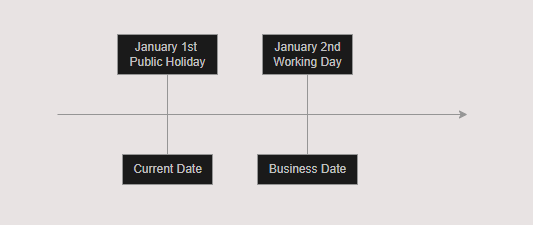
You can enable Business Date override for testing purposes on non-production environments by hardcoding a specific date and time. For override, you can select a non-working day. Please note that:
- If Business date override is enabled, future dated Journals and Balances will not be visible on Journals and Balances screens.
- Enabling Business Date override significantly affects the processing of the system:
- Future dated transactions, including scheduled transactions such as reversals, will be posted, but will not be visible on Journals and Balances screens.
- Past dated transactions that fall within a closed period and should not be posted will be posted if the override date forcibly opens the closed period.
For more details, refer to How to Configure Business Date for Testing/Non-production Environments?
Where Do We Use Business Date?
Business Date is used to determine the statuses of periods in Fynapse, whether a period is open or closed.
Below is an example of the relation between System Date and Business Date and the period status, for a configuration where Business Day shift is set to -1.
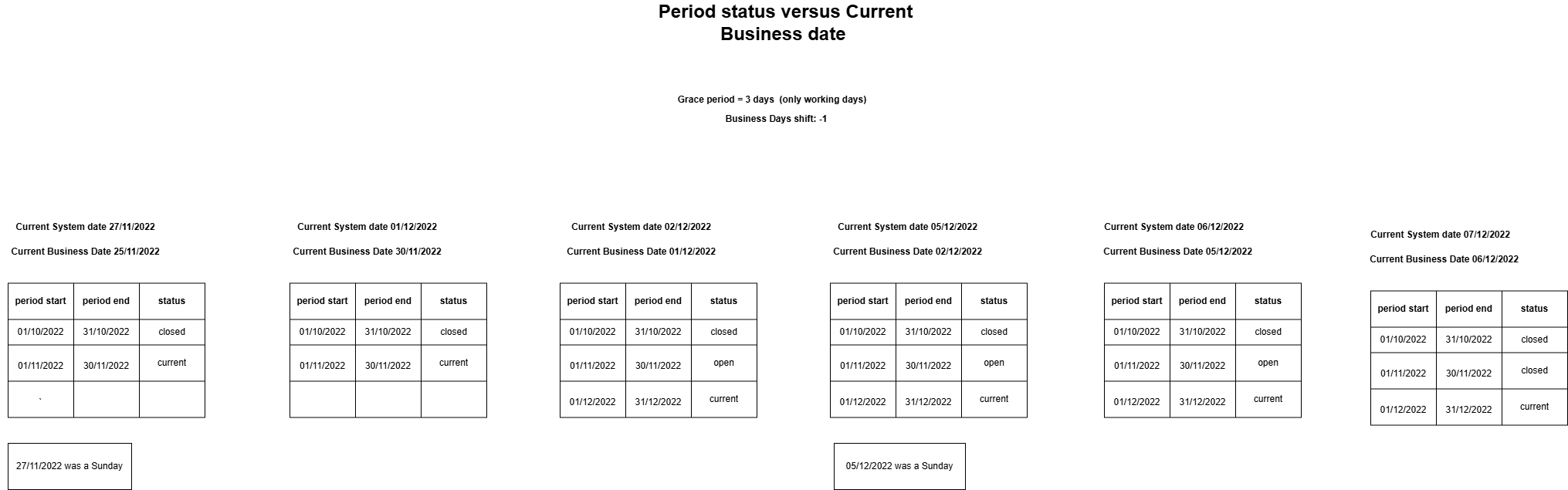
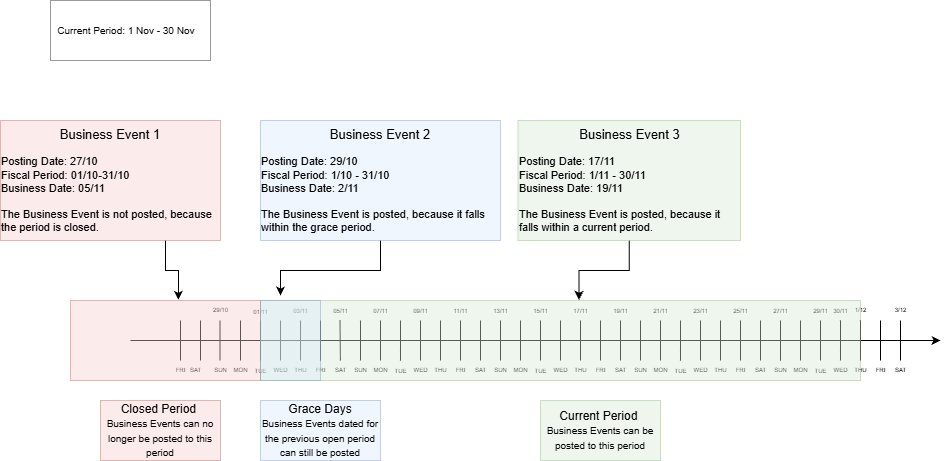
Based on this information, Fynapse determines whether a Business Event can be posted to a given period.
Example:
This is an example of a configuration with 3 Grace Days defined. For this configuration, only working days are included in the period calculations.
Tutorials
Business Date is configured on the System Settings screen and can be viewed on Accounting Bases and Node Configurations screens.
How to Configure Business Date?
By default, the Business Date is equal to the System Date.
-
Go to Configuration > System Settings.
-
Click the Edit button.
-
Set the Business date days shift as T-[n].
T refers to the current system date. When you set the Business Date, non-working days are omitted.
If Business Date override is enabled, you cannot configure the Business Date in this section.
-
Click the Save button to save the Business Date, or the Cancel button to discard your changes.
If you enable Business Date override, it will override the configuration defined above.
How to Configure Business Date for Testing/Non-production Environments?
This method for hardcoding the Business Date is recommended only for Testing or Non-Production Environments.
-
Go to Configuration > System Settings.
-
Click the Edit button.
-
Check the Business date override checkbox.
-
Select the Business Date by selecting a date from the calendar and then enter the fixed time.
You can select any date, including non-working days.
If Business Date override is enabled, future-dated Journals and Balances will not be visible on the Journals and Balances screens.
-
Click the Save button to save the Business Date, or the Cancel button to discard your changes.

