Period Locking
Overview
Fynapse allows you to control data feed incoming into periods in the form of posted Journals. By either closing or opening periods, you can either prevent new Journals from being posted or allow it.
Why Is End of Period Important?
All publicly listed companies operate on the concept of financial periods, very often these are months. The assumption is that by breaking a financial year into periods it is easier to control the data flow, by dividing it into smaller sets contained within a fixed, relatively small time-frame. This allows you to ensure consistency of financial reporting.
In order to achieve this fixed segmentation, you have to be able to “lock“ a period, i.e. prevent any further postings into that period.
Due to the focus on the period end, companies will have a number of days after the period end date when the prior period is still open to enable the financial controllers (or other applicable roles) to complete the period end controls and finalize the results. This is usually called the period close.
Locking
The period locking functionality allows you to lock the given period. This prevents any further postings into that period.
There are three statuses of a period:
- Current period - corresponding to the currently running period, which cannot be closed
- Open period - a period to which Journals can be posted with no limitations, it includes both previously closed periods that have been opened and periods that have not yet been closed and are in the configured Grace Period
- Closed period - a period to which no Journal can be posted
By default, a period is automatically locked on the last day of the given period. Periods are defined as part of Fiscal Calendars.
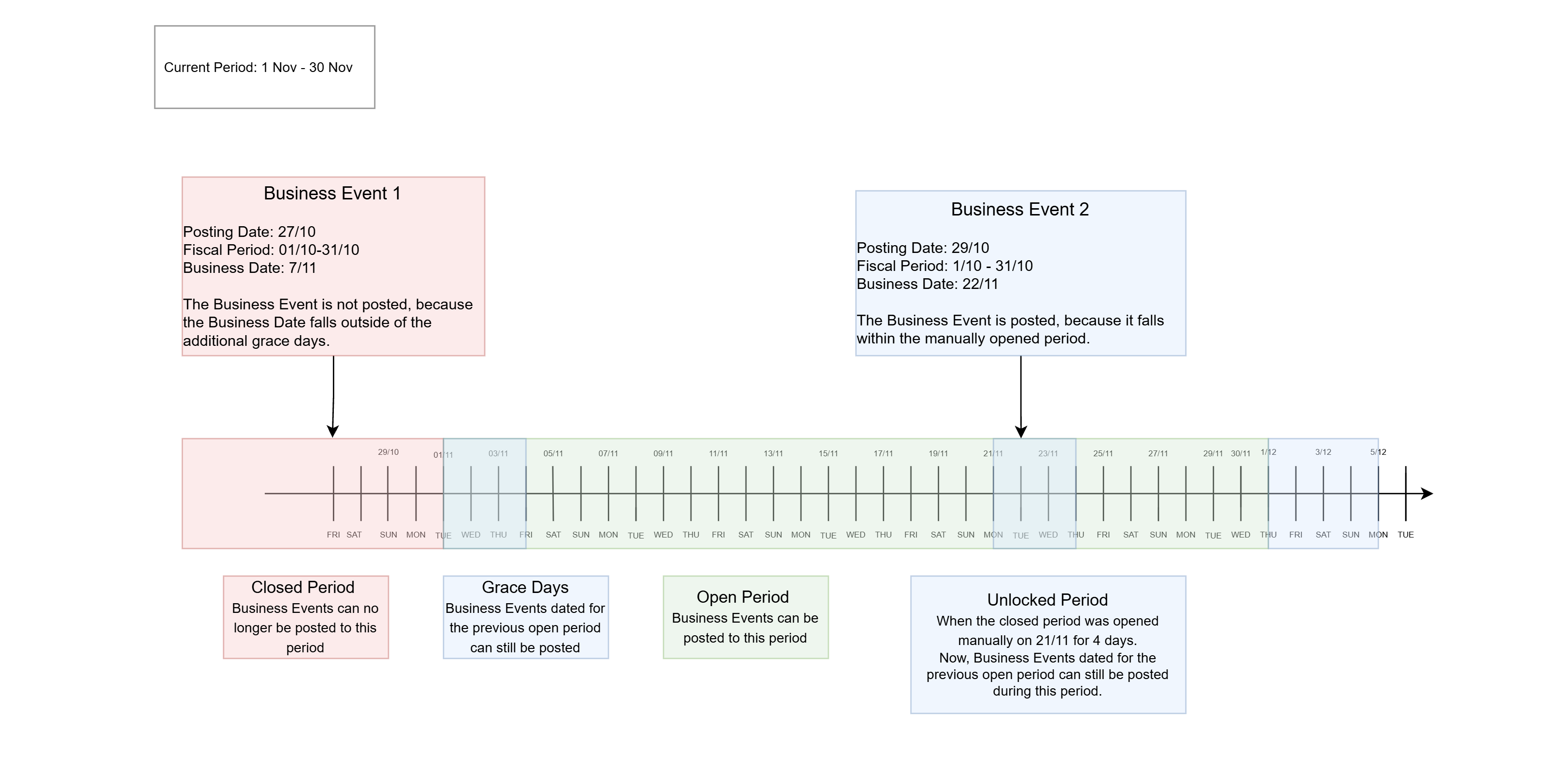
It is possible to extend the time when a period is open by defining a grace period. If a grace period has been set, then a period is automatically locked after the grace period has ended.
Grace Period
The days at the start of the current period, when the prior period is still open, are called “Grace Days”. They are defined on the level of Subledger Nodes on either Accounting Bases or Node Configurations screens.
Fynapse allows you to set a Grace Period of up to 4 days and 23 hours.
Manual opening and closing
It is possible to manually open or close a period that is not a Current period.
Example:
In this example, an already closed period has been manually opened on November 21st and a Grace Period of 4 days, Nov 21st - Nov 24th, has been set.
Period Locking Screen
The Period Locking screen consists of a grid that allows you to browse current, open, and closed periods.
By choosing one of the options in the drop-down list on the top of the grid, you can choose to view:
- All periods - which will display the current period, all preceding periods for the given fiscal year, and the last period from the previous fiscal year
The minimum display is 3 periods, so if the current period is the first period of the fiscal year, additional 2 months from the previous fiscal year will be displayed.
- Last 3 periods - which will display the current period and the preceding 2 periods
By default, the grid is set to display the last 3 periods.
Tutorials
How to Open a Period?
- Go to Subledger > Period Locking.
- On the Period Locking screen, select the periods you want to open from the grid by checking the boxes next to them.
- Click the Open button. The Opening periods pop-up window will appear.
- In the Closing time section, set a new closing time for the selected periods.
The closing time you set here will be shown in the Closing column on the grid. While the Closing time section displays the time zone set in your system, the grace period you set will be shown as decreasing dd/hrs/mins in the grid.
If you set a new Grace Period here, it will not include non-working days in the final tally.
- Click Open periods to open the selected periods, or Cancel to discard your changes.
How to Close a Period?
- Go to Subledger > Period Locking.
- On the Period Locking screen, select the periods you want to close from the grid by checking the boxes next to them.
- Click the Close button. The Closing periods pop-up window will appear.
- Click Close periods to open the selected periods, or Cancel to discard your changes.

