Business Event Definition
Overview
This article provides information about configuring Business Events, one of basic ingestion units for financial data in Fynapse.
What is a Business Event?
A Business Event is a representation of real-world transactions or life-cycle events, with a structure defined by the user.
Business Event Definition defines the structure of a Business Event.
A Business Event Definition can only be created after the Journal Line Definition is created, because one type of fields, Subledger Nodes, are mapped from Subledger Nodes configured on the Journal Line Definition.
Field Types
Business Event Definition comprises of fields of the following types:
A Business Event Definition comprises of mandatory and additional fields. The number of mandatory fields is set, however, the user can add as many additional fields as they require.
For decimal type fields the decimal attribute operates with the following parameters: scale 18 digits and precision 3 digits. This format is hardcoded and cannot be changed.
Systemic Fields
In Fynapse, Systemic Fields are a predefined set of mandatory hard-coded fields. For Business Event Definition there are only two types of Systemic Field - Event Type and Subledger Nodes.
Each of the Systemic Field Types have to be assigned a field. Once a field is assigned a Systemic Field Type it cannot be assigned a different Systemic Field Type. Also that Systemic Field Type cannot be used for a different field. The only exception is the Subledger Node. For more details about Subledger Nodes, refer below.
Subledger Nodes
Subledger Nodes are a type of Systemic Fields. The Subledger Nodes defined on the Business Event Definition screen have to correspond 1:1 to the Subledger Nodes defined on the Journal Line Definition screen. The system automatically performs the mapping, once you define the Subledger Node both on the Journal Line Definition and Business Event Definition screens.
For more details on Subledger Nodes, refer to Node Configurations.
Effective From
This is the attribute that indicates which date should be considered when calling reference data.
Additional Fields
Additional fields are non-mandatory fields created by the user. They can have text, date, integer, and decimal data type.
Primary Key
You can select one or more fields to constitute the primary key, i.e. unique identifier that is used to identify unique records in Fynapse.
Source
Business Event Definition fields are divided into two categories by source:
- Input - these are fields that draw data from input files with transaction data
- Reference - these are fields that draw data from Reference Entities based on references defined for the Business Event Definition
Enrichment
You can enrich the Business Events with data from Reference Entities from Finance Data Service.
References
To configure enrichment, first you have to define references to Reference Entities.
Each reference configuration comprises of the following information:
- Reference Name - the name of the reference
- Reference Label - label of the reference
- Referenced Entity - the Entity that will be used for the reference
- Description - optional description of the reference
- Information about connecting attributes:
- Name of the referenced Entity attribute - this is the attribute that is used to create a connection; only simple attributes can be used
- Connection - there are two types of connections that can be established between referenced Entity attributes and Business Event Definition fields:
- Matches - reference between an attribute in the referenced Entity and a Business Event Definition field, the value in the referenced attribute has to match the value of the connected Business Event Definition field
- Value - reference where the defined attribute in the referenced Entity has to have a constant determined value
Primary Keys
When creating a reference you have to cover Primary Keys. A Primary Key is a unique attribute or set of attributes that identify an Entity in the system. What this means is, if you define a Primary Key consisting of one attribute then you have to create a reference to this attribute when referring to this Entity. You can create references to other attributes as well, but Primary Key attributes are mandatory for a reference.
References on the Business Event Definition Screen
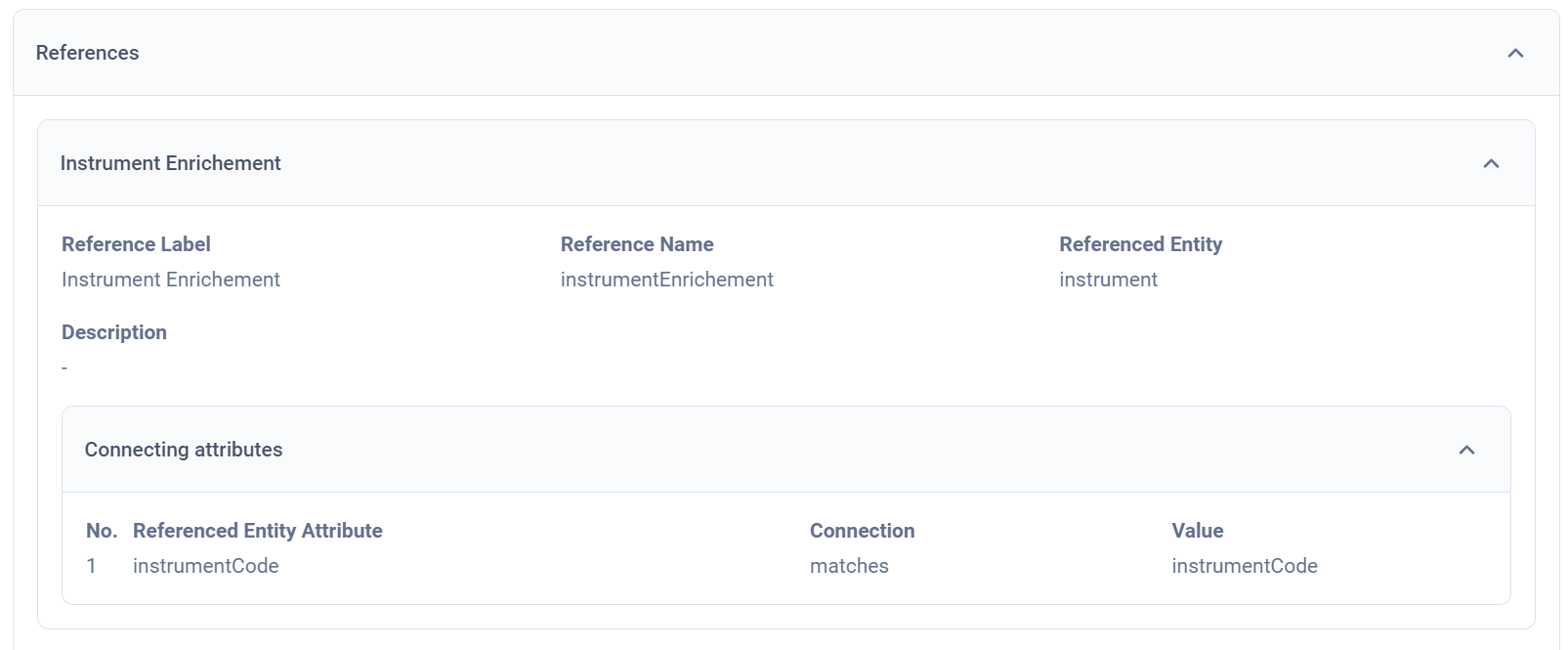
You can view the list of defined references by scrolling down to the References section, which is below the Fields section on the Business Event Definition screen.
If your Business Event Definition is long, we recommend collapsing the Fields section for easier access to the References section.
If there are defined references, then the References section is by default fully expanded, with details of each reference available. If there are no references defined, the References section will not be visible.
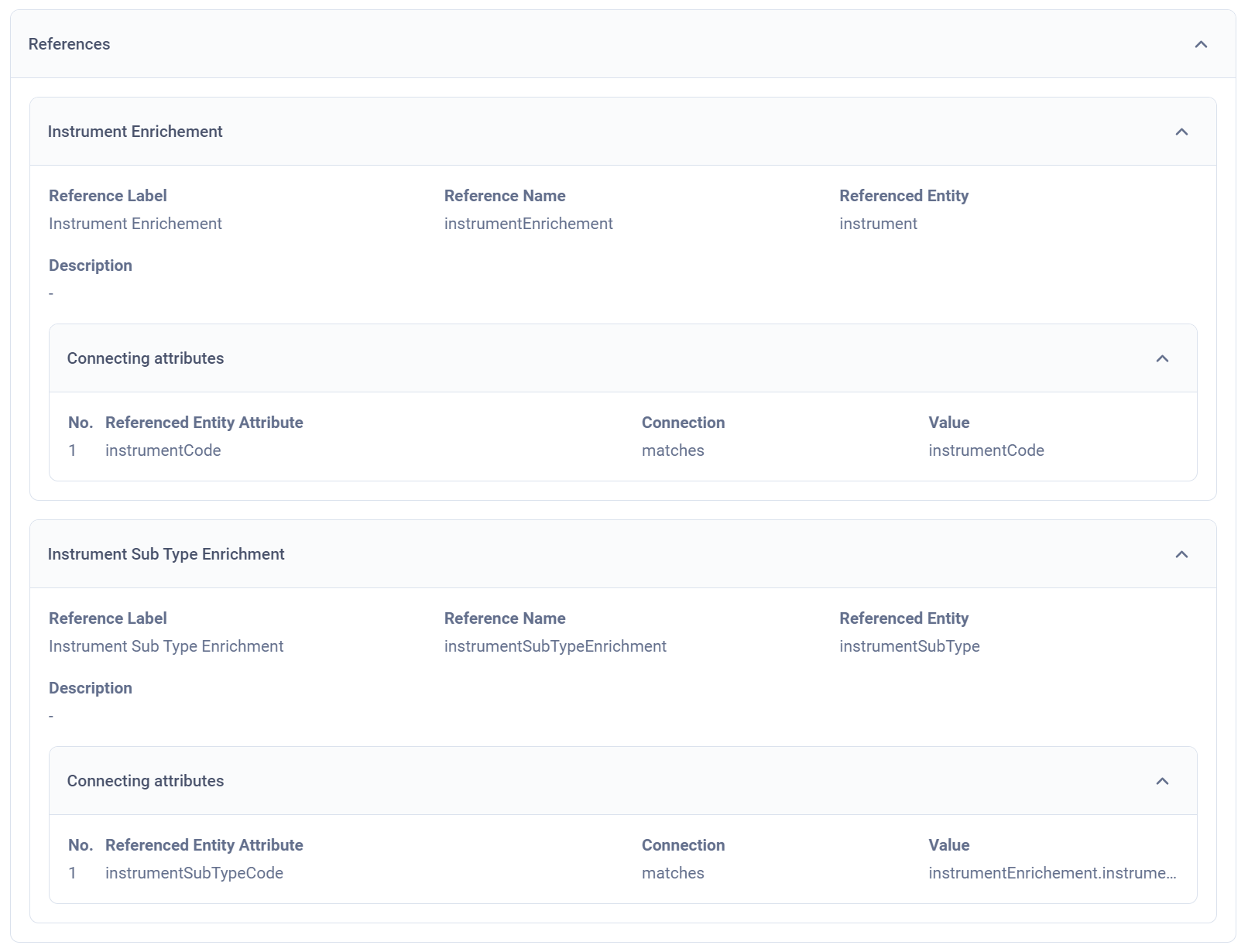
Below is an example of a defined reference:
Enriching Fields
Once you have defined references to Entities, you can add enriching fields to your Business Event Definition. This will allow you to expand your Business Event with data from a referenced Entity, as Enriching Fields are fields that draw data from Entities based on references defined for the Business Event Definition.
The enriching field details comprise of the following information, in addition to the standard field definition:
- Field Source - the name of the reference which creates the connection with the Referenced Entity with the Enriching Attribute
- Enriching Attribute - defines which referenced Entity attribute the field draws input from
Enriching Fields in the Business Event Definition Grid
Enriching Fields are visible in the Business Event Definition Grid:

Validations
You can define your own validations for Business Events.
For more details, refer to Validations.
How Do I Know a Business Event Is Errored?
A failed Business Event does not create a Journal. What that means is an error occurs during processing, which prevents Fynapse from generating Journal Lines from a submitted Business Event. Such failed Business Event is then marked as errored and submitted for reprocessing. Information about why a Business Event failed can be downloaded from the Error Management screen. You can then correct the configuration which resulted in an errored Business Event. The Business Event will then be automatically resubmitted for reprocessing. Fynapse automatically submits all failed Business Events for reprocessing according to schedules defined by users with the Fynapse System Administrator role via the Reprocessing screen. A failed Business Event will be automatically submitted for reprocessing for a defined number of retries starting from the date it was first marked as errored. If you do not remove the cause of the error after the defined limit of retries, the Business Event will remain in the errored status.
Currently, automatic resubmission occurs by default once a day at 8:00 UTC unless it is defined differently by a user with the Fynapse System Administrator role.
You can also trigger reprocessing manually, outside of the allocated automatic reprocessing slots.
For more details about triggering manual reprocessing, refer to Error Management.
If the Posting Date of a failed Business Event falls outside of an open period, you can enable Posting Date override which overrides the Posting Date to the first day of the current period.
For more details about Posting Date override, refer to Node Configurations and Accounting Bases.
Business Event processing errors can be caused by faulty configuration of:
- Posting Components
- Posting Patterns
- Account Lookups
- Node Configuration
- Account
- Business Event Definition Structure
- Deferrals
- The Journal generated from the Business Event not being balanced
Examples
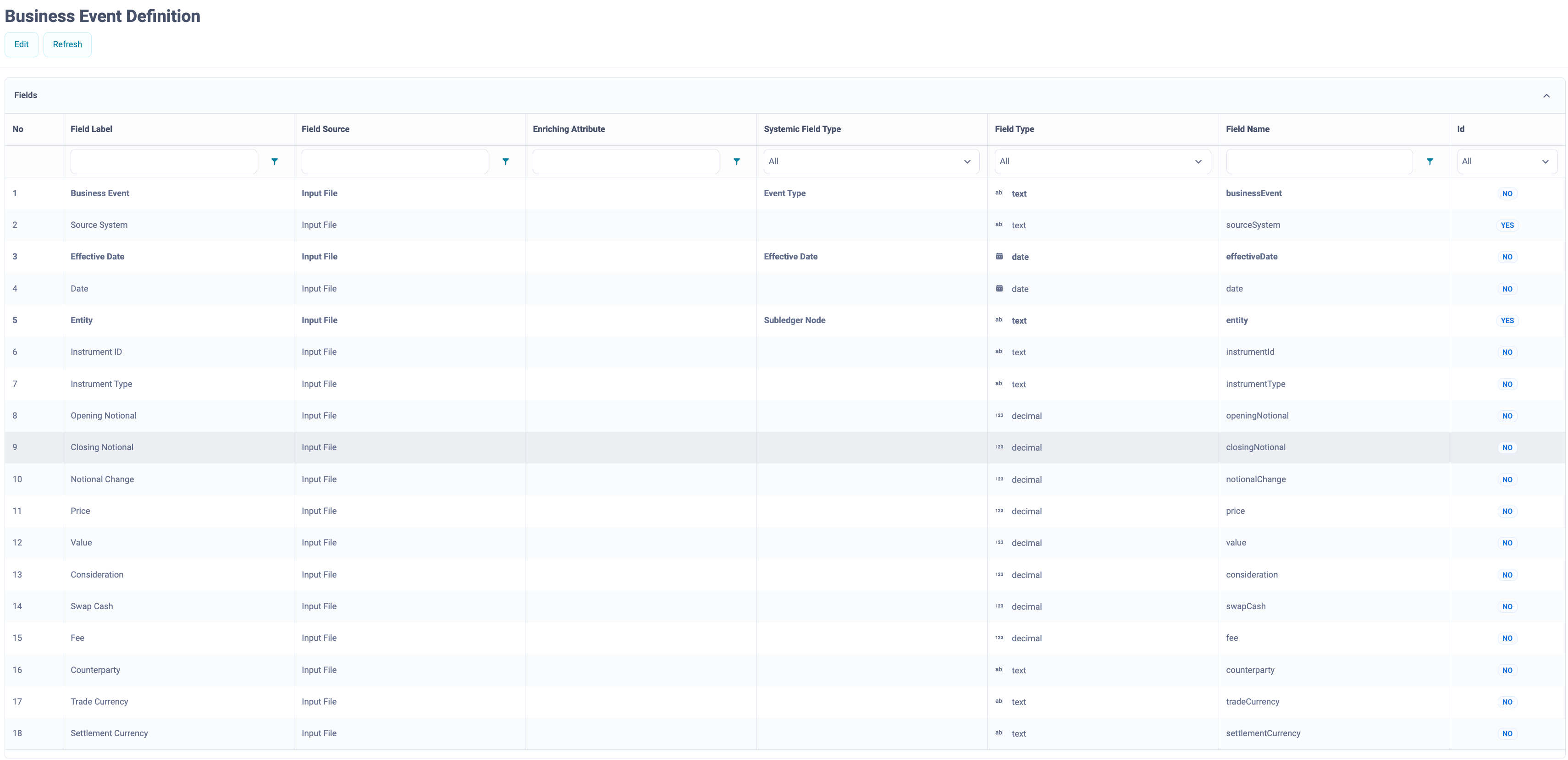
Business Event Definition Example
- Field Label - the name of the field that will be visible in the screen.
- Systemic Field Type - Systemic Fields are a predefined set of mandatory hard-coded fields. Each of the Systemic Field Types have to be assigned a field. Once a field is assigned a Systemic Field Type it cannot be assigned a different Systemic Field Type.
- Field Source - the source of the data in the field
- Input File - the source of data is an ingestion file with the Business Event
- “entityName“ - this type uses the name of the referenced Entity, e.g., referenceEntity, which is the source of data for this field
- Enriching Attribute - name of the enriching attribute in the referenced Entity
- Field Type - the data type of the field
- Field Name - the technical name for the field, used in the header of the data ingestion file
- Id - the fields which constitute the Primary Key
Business Event example
Tutorials
How to Configure a Business Event Definition?
Prerequisite: To create a Business Event Definition, you have to have a Journal Line Definition already defined. If you do not have a Journal Line Definition created, an error message informing you that there is no existing Journal Line Definition will appear when you open the Business Event Definition screen.
The fields on Business Event Definition have a maximum limit of 128 characters.
- Go to Configuration > Accounting Configuration > Business Event Definition.
- On the Business Event Definition screen, click the Edit button. You can add obligatory and optional fields. The obligatory fields constitute Systemic Fields (for more information, see above) and Subledger Nodes (it is obligatory to have a minimum one Subledger Node). Optional fields are attributes configured by you. By default, when you click the Add button and a new record appears, the Systemic Field Type is left blank, i.e., is set to an optional attribute, and the Field Type is set to text.
- Add a Field Label for the new record. The system will automatically fill out the Field Name. You can type a Field Name different from the Field Label. Once you type a different Field Name and then change the Field Label, the Field Name will not change. However, if you add a mandatory Systemic Field Type, the Field Name will be set to a hardcoded value for this Systemic Field Type.
- Field Source determines whether the field will draw data from an input file or an enriching attribute.
- Set Input File if you want the field to draw the data from an input file.
- Set the Reference Name if you want the field to draw the data from an enriching attribute.
A prerequisite for defining Enriching Fields is having references defined for the Business Event Definition. Please refer to How to Define a Reference for Business Event Definition? and How to Configure Enriching Fields? tutorials below for more details.
- Select the Systemic Field Type if you wish to configure a mandatory field or leave this field blank if you wish to configure an additional field.
If you select a mandatory Systemic Field Type, e.g., Core Date, the Field Type will automatically be set to the data type required for this Systemic Field, e.g., date for Core Date, and the Field Name will also be automatically set and will not be editable. Once you configure a mandatory Systemic Field Type, it will no longer be available in the Systemic Field Type list to ensure the mandatory Systemic Fields are not duplicated
Remember all Systemic Fields have to be configured.
A validation icon, in the form of a red x or a green tick sign, is available next to the Cancel icon in the editing pane on the top of the screen. Real-time validation of the Business Event Definition configuration is provided. If you click the icon, it will show validation messages regarding your current configuration, red for warnings, and green for the correct configuration.
- In the Id column, select the field that will be used to identify the Business Event in the system. You can choose one or more fields.
This identification will constitute the Primary Key and will be used for logging validation errors. If you do not select any fields, you will not be able to identify a failed Business Event in the error log.
- Once all validation messages are green, the Save button will become active and you will be able to save your Business Event Definition.
Any changes to an already created Business Event Definition should be made with caution. Once a Business Event Definition is created it ties into the processing rules configured in the Accounting Engine. Whenever you change an existing Business Event Definition, the changes affect Accounting Engine configuration and may cause the configuration to stop working. Furthermore, as a result of breakdown of Accounting Engine processing, all Business Events still awaiting processing will be removed from the system. All errors caused by changes in Business Event Definition are available in the error log.
How to Define a Reference for Business Event Definition?
- Go to Configuration > Accounting Configuration > Business Event Definition.
- On the Business Event Definition screen, click the Edit button.
- Click the Add reference button.
The screen will automatically scroll down to the new reference configuration section.
- To configure a reference:
- Type a Reference Label.
- The Reference Name is filled by default by a technical version of the Reference Label. You can change it if required.
- Select the Referenced Entity from the drop-down list.
- You can add an optional description.
- In the Connecting attributes section, create connections between referenced Entity attributes and Business Event Definition fields.
The minimum connection has to include the Primary Key attributes of the referenced Entity.
- matches - a reference to between an attribute in the referenced Entity and a Business Event Definition field
You can also create a connection to a field from another Reference Entity, which will create a linked reference. To learn more about linked references, refer to the How to Configure Linked References? tutorial below.
- value - reference where the defined attribute in the referenced Entity has to have a constant determined value
- For ‘matches’ type connections, select a matching field from the drop-down list.
- For ‘value’ type connections, configure the value.
- If you want to expand the mapping beyond the Primary Key attributes of the referenced Entity, click the Add button and select an additional attribute.
- Once all validation messages are green you can click the Save button to save your reference. If you click the Save button before the validation icon is green, an error will be thrown and the Business Event Definition will not be saved.
It is not possible to modify or delete a reference once an attribute connected via that reference has been used in the Business Event Definition. To be able to modify such a reference, you have to unmap it from the Business Event Definition.
How to Configure Linked References?
You can create a more complex enrichment by creating a reference based on a field from a different reference.
In order to set this up correctly, it is best if you do it in stages:
Stage 1
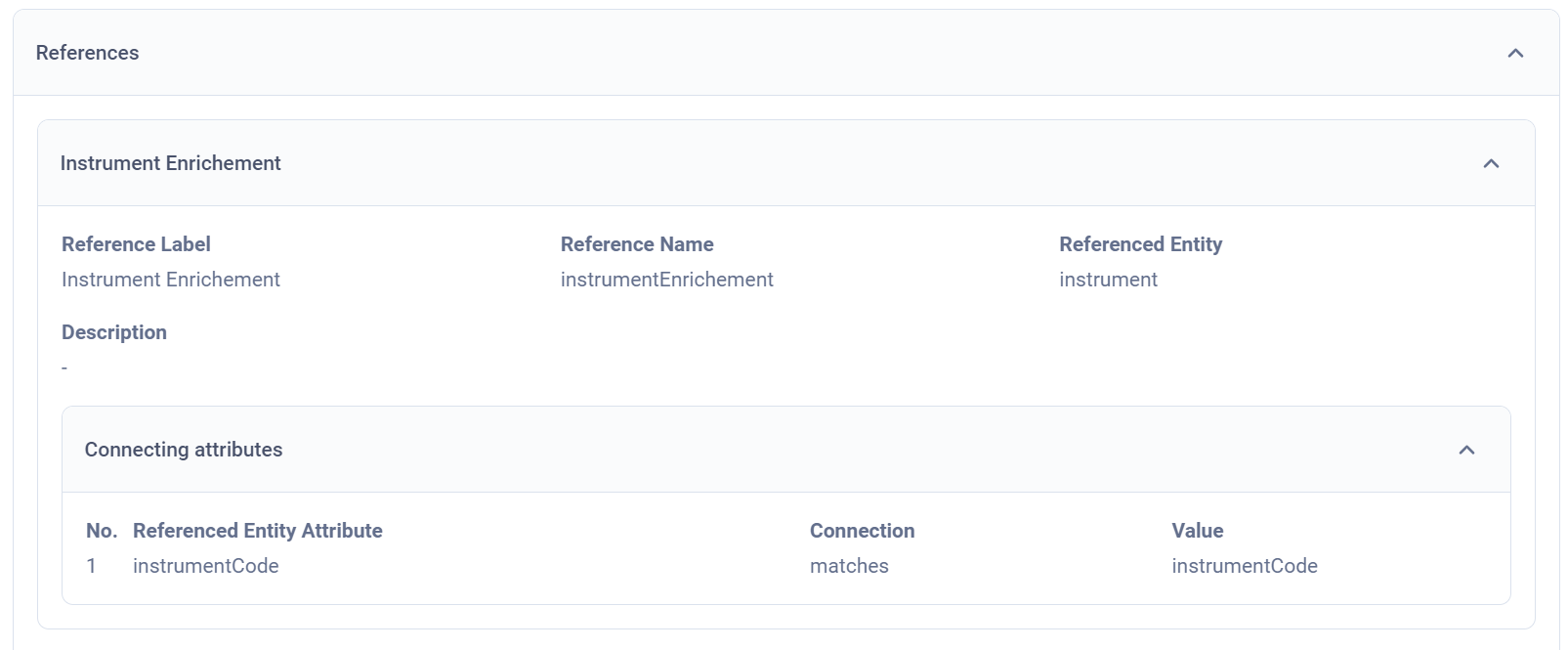
Define the first reference, e.g., Instrument Enrichment:
- Reference Label: Instrument Enrichment
- Reference Name: instrumentEnrichment
- Referenced Entity: instrument
- Referenced Entity Attribute: instrumentCode
- Connection: matches
- Value: instrumentCode
Stage 2
Define an enriching field using a field from the referenced Entity, in this example, this is the “Instrument Sub Type Code” field:
- Field Label: Instrument Sub Type Code
- Field Source: instrumentEnrichment
- Enriching Attribute: instrumentSubTypeCode
- Field Type: text
- Field Name: instrumentSubTypeCode

Stage 3
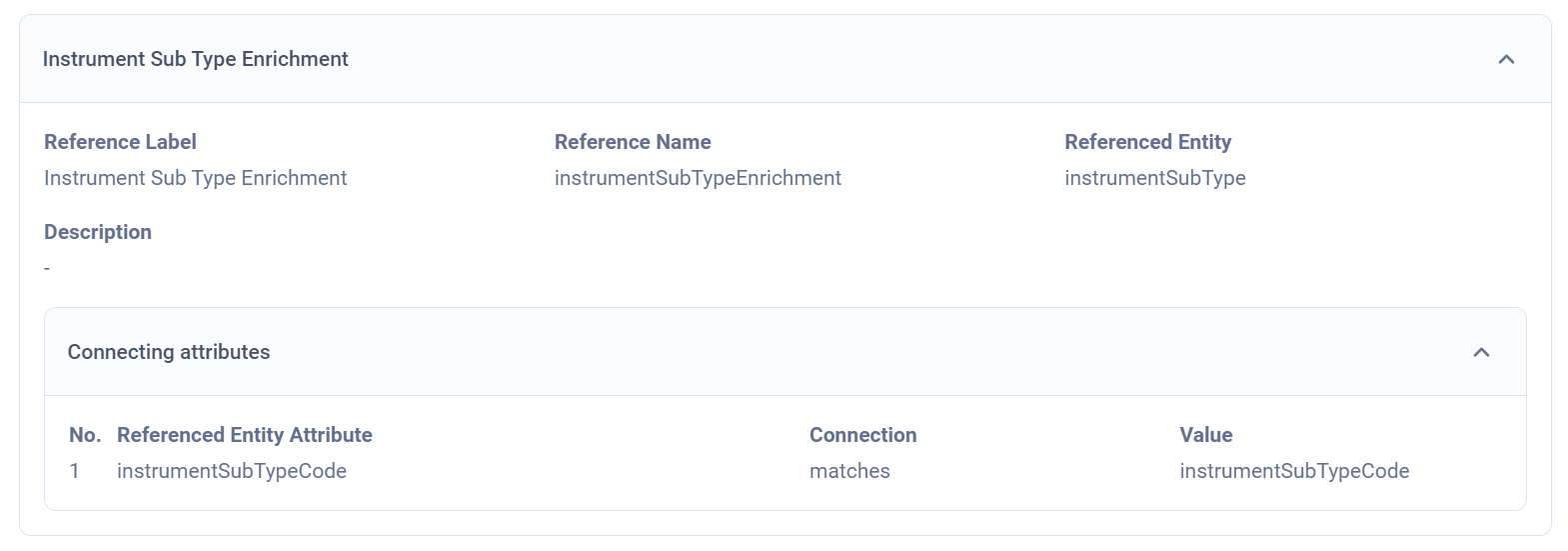
Now, when creating a “hook” for another reference, you can use the “Instrument Sub Type Code” field. This will simplify validations, as the system will not be required to call the referenced Entity, because the field is already part of the Business Event Definition:
- Reference Label: Instrument Sub Type Enrichment
- Reference Name: instrumentSubTypeEnrichment
- Referenced Entity: instrumentSubType
- Referenced Entity Attribute: instrumentSubTypeCode
- Connection: matches
- Value: instrumentSubTypeCode
If you create linked references, you have to ensure they are listed in the correct order. The references are validated in the order they are listed, so if you are using a field from a reference in another reference, the latter have to be listed first. This will ensure the field is populated in the Business Event and the call from the second reference does not return empty.
An alternative version would be to create a link between the two references without creating a new field on the Business Event Definition:
where in the definition of the reference in the Value for connecting attribute you have created a “hook” for another reference by selecting a field from an already defined reference in the drop-down,
here:
- intrumentEnrichment is the name of another reference
- instrumentSubType Code is the name of a field in another Entity called by the instrumentEnrichment reference
How to Configure Enriching Fields?
- Go to Configuration > Accounting Configuration > Business Event Definition.
- On the Business Event Definition screen, click the Edit button.
- Click the Add field button.
The screen will automatically scroll down to the new field configuration section.
- To configure an enriching field:
- Type a Field Label. The system will automatically fill out the Field Name. You can type a Field Name different from the Field Label. Once you type a different Field Name and then change the Field Label, the Field Name will not change. However, if you add a mandatory Systemic Field Type, the Field Name will be set to a hardcoded value for this Systemic Field Type.
- In the Field Source column, select the name of the reference that creates the connection with the Referenced Entity with the Enriching Attribute.
- Select the Enriching Attribute, the field in the Reference Entity from which data will be drawn.
- You can choose to set the Enriching Field as a Systemic Field by configuring the Systemic Field Type in the Systemic Field Type column.
- The Field Type will by default inherit the field type of the Enriching Attribute. This setting cannot be changed.
- Once all validation messages are green, the Save button will become active and you will be able to save your enrichment.
Deleting References in the Configuration Data JSON File
References can also be deleted via the Configuration Data JSON file by changing the Business Event Definition code snippet.
For more details about Configuration Data JSON file, refer to Configuration Data.

