Journal Mapping
Overview
This article provides information on the types of mappings you can configure for Journals.
The Journal Mapping screen allows you to create mappings between:
- Fields defined for Business Events or
- Derived Attributes from Accounting Engine processing
and
- Fields defined for Journal Lines
The screen provides you with a clear view of the existing mappings and flexibility in creating new mappings, depending on your requirements.
Why Is Mapping Necessary?
Mapping between Business Event fields or Derived Attributes and Journal Line fields allows you to establish how Journal Line fields are populated by data from Business Event fields.
The mapping might be straightforward 1:1, with all defined Business Event fields corresponding exactly to defined Journal Line fields. However, there can also be more complex cases, e.g.:
- A Business Event Definition may have different field names than a Journal Line Definition
- A Business Event Definition may have more fields defined than a Journal Line Definition
- Journal Line fields may be populated based on complex conditions
- Complex cases may require a mapping between Journal Line fields and Derived Attributes
Derived attributes are attributes that are assigned to a Journal Line, via the configurations in the ARN, as it is created by the Accounting Engine processing, e.g., Posting Component, Account, etc.
Mapping using Derived attributes allows you to facilitate more customized requirements for output data. For example, you may want to create a custom logic of populating an attribute for a Journal Line only for certain accounts, such as the ID of the salesperson responsible for the transaction, which can be later used to create a report of their sales. For another example, go to the Subledger Node Override section.
Prerequisites
To be able to create mappings, first you have to define:
After these definitions are complete, the defined fields are available on the Journal Mapping screen.
Systemic Fields, with the exception of Subledger Nodes, do not appear on the Journal Mapping screen, as the values from Systemic Fields are mapped to records during processing in the Accounting Engine.
Types of Mappings
The Journal Mapping screen allows you to create the following types of mappings:
- Simple Mappings
- Field Mapping - is a mapping between a Business Event field and a Journal Line field
- Value Mapping - is a mapping where a value is defined for a given Journal Line field
- Conditional Mapping - is the most complex type of mapping between two or more fields. For more details, refer to Conditional Mapping below.
Conditional Mapping
Conditional mapping is a mapping between two or more fields with defined cases and conditions, which determine how a Journal Line field is populated. These types of mappings are created with differing levels of complexity using IF, THEN, and ELSE cases.
Conditional Mapping Cases
- IF - introduces the condition for assigning a specific value
- THEN - determines which value is assigned if the IF case was met
- ELSE - determines what value is assigned if the IF case was not met
Additionally, if you define more than one condition for an IF case, you can choose to:
- Match all - all defined conditions have to be met, an “AND“ icon appears between the conditions
- Match any - one of the defined conditions has to be met, an “OR“ icon appears between the conditions
If a Journal Line field is not mapped to a Business Event field, the default value for this field is NULL.
The cases defined for a Conditional mapping are processed in a top-down order.
If all defined IF and ELSE cases are not met, the assigned value for that field is NULL.
You can change the order of defined cases by using the Move up and Move down icons in the details section, which you can see on the screenshot below:
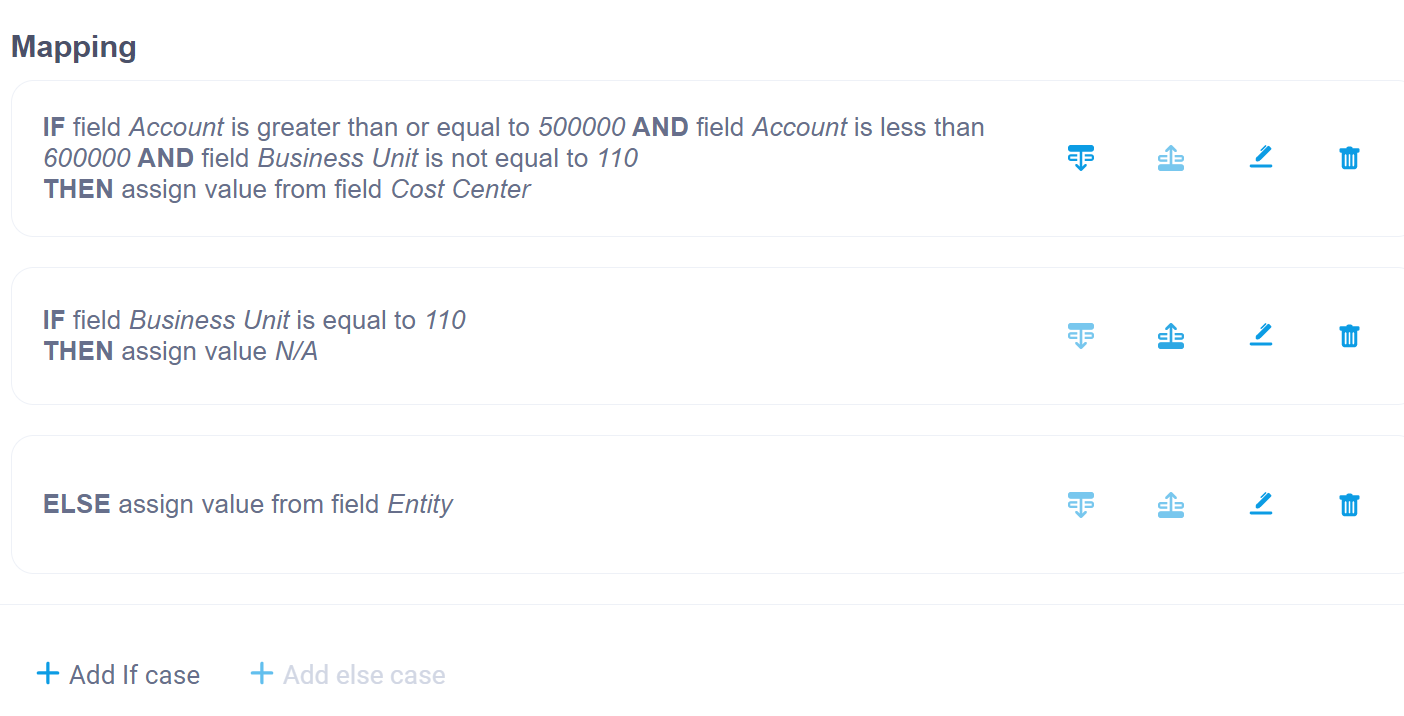
Example of a Conditional Mapping
The example below consists of a Conditional mapping with two IF cases, one with three conditions (1) and one with one condition (2), and an ELSE case (3):
- IF Account is greater than or equal to 5000000
AND
Account is less than 6000000
AND
Business Unit is equal to 110
THEN assign Cost Center - IF Business Unit is equal to 110
THEN assign value N/A - ELSE assign value from field Entity
Subledger Node Override
Subledger Nodes represent the key organizational units at which accounting is controlled and reported. Each Subledger Node field has a default mapping defined, which is created automatically once the node fields are created for Journal Line definition and Business Event definition. This default mapping cannot be deleted. However, you can add a Conditional mapping to this default mapping.
A Subledger Node field from the Business Event Definition can be used in mappings to other fields, the restrictions below apply only to mappings between Business Event and Journal Line Subledger node fields.
A Conditional mapping using Subledger Node fields is governed by the following constraints:
- The Else case is the default mapping and is automatically populated
- The Else case cannot be deleted or changed
- When you clear a created conditional mapping for a Subledger Node, the default mapping is restored
- The Then case cannot be NULL
Example - Intercompany Posting
A good example of when Subledger Node override can be used is in the case of intercompany posting. In intercompany accounting, you may need to create 2 Journals in 2 different companies from one Business Event.
So for an input Business Event record ABC_INIT, this would mean overriding the default Entity with an intercompany Entity:
To achieve that you have to create the following Conditional mapping for the Entity Subledger Node:
- IF Company Code is equal to London
THEN assign INTERCOMPANY [this is a Value-type mapping] - ELSE assign value from field Entity, i.e. COMPANY
Journal Mapping Screen
The Journal Mapping screen allows you to create mappings between fields defined for Business Events, Derived Attributes, and fields defined for Journal Lines. The screen provides you with a clear view of the existing mappings and flexibility in creating new mappings, depending on your requirements.
Field Labels
Each Business Event and Journal Line field has a label denoting its status.
A Business Event field can have one of the following labels:
- Unmapped - the field is not mapped to any other field
- [number] - a number denotes the number of mappings attached to the field
A Derived Attribute field can have one of the following labels:
- Unmapped - the field is not mapped to any other field
- [number] - a number denotes the number of mappings attached to the field
A Journal Line field can have one of the following labels:
- Unmapped - the field is not mapped to any other field
- Field - Field-type mapping
- Value - Value-type mapping
- Conditional - conditional mapping
Sorting and Filtering Fields
The mapping grid shows all Business Event, Derived Attributes’ and Journal Line Definition fields.
By default, the order of the fields in the grid corresponds to the order of fields created for Business Event Definition and Journal Line Definition. You can also sort the mappings by alphabetical or inverted alphabetical order. At any time you can restore the default order by using the Sort by definition button.
The Derived attributes fields are listed in the order they appear in Accounting Engine processing.
You can filter out the mapped fields. You can also view the mappings by clicking the toggle icon next to a mapped field.
The Refresh button refreshes the screen and hides all expanded mappings.
The show mapping links drop-down:
- All Mappings - shows all mappings
- Conditional Mappings - shows only conditional mappings
- Field Mappings - shows Field-type mappings
- Selected Mapping - shows only the mapping of a selected item
The Value-type mappings cannot be selected in the drop-down, because they do not have mapping links that could be shown.
Editing Mode
When you are working in the editing mode, you can move between working on different fields.
Also, two dots may appear next to the field you are editing or have edited:
- A yellow dot - denotes the fields where you have unsaved changes
- A red dot - denotes a field which has validation errors
Version History
Whenever you change something in an existing configuration, Fynapse creates a new version of the configuration to overwrite the previous one. Subsequent versions are given incremental numbers, which are assigned by default and non-editable. The initial version of a configuration is given the number: “V 1”, the second “V 2“, and so on.
You can view previous versions of Journal mapping configurations, by clicking the Show History button. A version history grid with the following information will appear:
- Version - number of the version
- Last modified - the date when the version was created
- Modified by - who created the version
- Comment - mandatory comment you are prompted to add when changing a configuration
You can switch between historical versions by clicking on different items in the Version grid.
You can also collapse the tabs on the left, to get a larger view of the historical version’s details section, by clicking the collapse buttons at the top of each tab.
To exit the history details section click the X button. You will go back to the version history grid.
To close the version history grid click the Hide History button.
Tutorials
How to Create a Field-type Mapping from a Business Event or a Derived Attribute Field?
Prerequisite: To create a mapping, you have to have a Journal Line Definition and Business Event Definition already defined.
- Go to Configuration > Journal Mapping.
- Click the Edit button.
- Select a Business Event you want to map and click the Select button. Checkboxes will appear next to the Journal Line fields.
- Select the box next to the Journal Line field you want to map to the Business Event or the Derived Attribute field. A mapping line will appear between the fields.
- Click the Save button to save your mapping, or the Cancel button to discard your changes.
- The Saving new version dialog will appear. Add a mandatory comment about your changes and click the Save new version button to save your changes, or the Cancel button to return to the editing mode.
Alternatively, you can create a mapping from the Journal Line. For more details, refer to How to Create a Field-type Mapping for a Journal Line field?
How to Create a Field-type Mapping for a Journal Line Field?
Prerequisite: To create a mapping, you have to have a Journal Line Definition and Business Event Definition already defined.
- Go to Configuration > Journal Mapping.
- Click the Edit button.
- Select a Journal Line you want to map and click the Select button. Checkboxes will appear next to the Business Event and Derived Attributes’ fields and a details section will appear on the right.
- Select the box next to the Business Event or Derived Attribute field you want to map to the Journal Line field. A mapping line will appear between the fields.
- Alternatively, you can use the drop-downs in the section on the right:
- Select the Field Mapping Type.
- Select the Source Field.
- Click the Save button to save your mapping, or the Cancel button to discard your changes.
- The Saving new version dialog will appear. Add a mandatory comment about your changes and click the Save new version button to save your changes, or the Cancel button to return to the editing mode.
Alternatively, you can create a mapping from the Business Event. For more details, refer to How to Create a Field-type Mapping from a Business Event field?
How to Create a Value-type Mapping?
Prerequisite: To create a mapping, you have to have a Journal Line Definition and Business Event Definition already defined.
- Go to Configuration > Journal Mapping.
- Click the Edit button.
- Select a Journal Line you want to map and click the Select button. Checkboxes will appear next to the Business Event and Derived Attributes’ fields and a details section will appear on the right.
- In the details section, select Value from the Mapping Type drop-down.
- Enter the value. The data type of the value is validated based on the defined data type for a given field:
- Date for date-type fields
- Digits for decimal-type fields
- Digits and signs for string-type fields.
- Click the Save button to save your mapping, or the Cancel button to discard your changes.
- The Saving new version dialog will appear. Add a mandatory comment about your changes and click the Save new version button to save your changes, or the Cancel button to return to the editing mode.
How to Create a Conditional Mapping?
Prerequisite: To create a mapping, you have to have a Journal Line Definition and Business Event Definition already defined.
- Go to Configuration > Journal Mapping.
- Click the Edit button. Select a Journal Line field you want to map and click the Select button. Check boxes will appear next to the Business Event and Derived Attributes’ fields and a details section will appear on the right. or Select a Journal Line field you want to map and click the Select button. A details section will appear on the right. Click the Edit button. Checkboxes will appear next to the Business Event and Derived Attributes’ fields and the details section will go into the editing mode.
- In the details section, you can:
- Define a Field or Value-type mapping and then turn it into a Conditional mapping by clicking Enable cases.
- Click Enable cases to go straight to defining a Conditional mapping.
A red dot will appear next to a field that has validation errors in the provided data.
- Start with the IF case:
The cases defined for a Conditional mapping are processed in a top-down order.
- Select the Source Field from the drop-down list.
- Select the Operator from the drop-down list.
- Type the Value.
Based on the selected Source Field, the Value input box will validate if the provided value is in accordance with the required data type of the field.
- You can add as many conditions for your IF case as you need by clicking + Add condition.
If you define more than one condition, you can choose to:
- Match all - all defined conditions have to be met, an “AND“ icon appears between the conditions
- Match any - one of the defined conditions has to be met, an “OR“ icon appears between the conditions using the Match all and Match any buttons on the top.
- Now define the THEN case:
- Select the Mapping Type, Field, Value or Null.
- Select a Value for Value-type mapping or a Source Field for a Field-Type mapping.
- You can add as many IF cases as you need by clicking +Add If case and repeating steps 4 and 5.
- Now you can add the ELSE case:
The ELSE case is optional. A Conditional mapping can be defined with only one IF case.
- Click + Add else case.
- Select the Mapping Type, Field, Value or Null.
- Select a Value for Value-type mapping or a Source Field for a Field-Type mapping.
- Click the Confirm button to save your condition definition, or the Cancel button to discard your changes.
This only confirms the case you are working on, it does not save the mapping.
- Click the Save button to save your mapping, or the Cancel button to discard your changes.
- The Saving new version dialog will appear. Add a mandatory comment about your changes and click the Save new version button to save your changes, or the Cancel button to return to the editing mode.
At any time you can delete a condition of the case you are working on by clicking Delete condition.
How to Edit a Mapping Type?
Prerequisite: To create a mapping, you have to have a Journal Line Definition and Business Event Definition already defined.
- Go to Configuration > Journal Mapping.
- Select a Journal Line field with a defined mapping and click the Select button. An outline will appear around the field and the mapping line will be shown, if applicable. The details section will appear on the right.
- Click the Edit button. Mapping details appear as drop-downs.
- From the Mapping Type drop-down select a different type of mapping:
- For a Field-type mapping select a Source Field. Alternatively, you can check a box next to a Business Event field.
- For a Value mapping enter a value according to the data type of the field.
- For a Conditional mapping, click Enable cases and start defining the cases for your mapping.
For more details, refer to How to Create a Conditional Mapping?
If you want to change a Conditional mapping to a different mapping type, first you have to delete the case using the trash icon.
- Click the Save button to save your mapping, or the Cancel button to discard your changes.
- The Saving new version dialog will appear. Add a mandatory comment about your changes and click the Save new version button to save your changes, or the Cancel button to return to the editing mode.
How to Edit a Field-type Mapping?
Prerequisite: To create a mapping, you have to have a Journal Line Definition and Business Event Definition already defined.
- Go to Configuration > Journal Mapping.
- Select a Journal Line field with a defined Field-type mapping (the Field label) and click the Select button. An outline will appear around the field and the mapping line will be shown. The details section will appear on the right.
- Click the Edit button. Checkboxes will appear next to the Business Event fields.
- Select the checkbox next to a different Business Event or Derived Attribute field.
- Alternatively, you can use the drop-downs in the section on the right. Select a different Source Field from the drop-down.
- Click the Save button to save your mapping, or the Cancel button to discard your changes.
- The Saving new version dialog will appear. Add a mandatory comment about your changes and click the Save new version button to save your changes, or the Cancel button to return to the editing mode.
How to Edit a Value-type Mapping?
Prerequisite: To create a mapping, you have to have a Journal Line Definition and Business Event Definition already defined.
- Go to Configuration > Journal Mapping.
- Select a Journal Line field with a defined Value-type mapping (the Value label) and click the Select button. An outline will appear around the field and the mapping line will be shown. The details section will appear on the right.
- Click the Edit button. Mapping details appear as drop-downs. Change the defined value.
- Click the Save button to save your mapping, or the Cancel button to discard your changes.
- The Saving new version dialog will appear. Add a mandatory comment about your changes and click the Save new version button to save your changes, or the Cancel button to return to the editing mode.
How to Edit a Conditional Mapping?
Prerequisite: To create a mapping, you have to have a Journal Line Definition and Business Event Definition already defined.
- Go to Configuration > Journal Mapping.
- Select a Journal Line field with a defined Conditional mapping (the Conditional label) and click the Select button. An outline will appear around the field and the mapping line will be shown. The details section will appear on the right.
- Click the Edit button.
- If you have more than one case defined, you can change the order of the cases by using the move down or move up icon.
- You can edit an existing case by clicking the edit icon.
- You can delete a case by clicking the trash icon.
- You can also add a new IF or ELSE case by clicking +Add If case or +Add else case. For more details on adding cases, refer to How to Create a Conditional Mapping?
- Click the Confirm button to save your condition definition, or the Cancel button to discard your changes.
This only confirms the case you are working on, it does not save the mapping.
- Click the Save button to save your mapping, or the Cancel button to discard your changes.
- The Saving new version dialog will appear. Add a mandatory comment about your changes and click the Save new version button to save your changes, or the Cancel button to return to the editing mode.
How to Copy a Mapping?
Prerequisite: To create a mapping, you have to have a Journal Line Definition and Business Event Definition already defined.
- Go to Configuration > Journal Mapping.
- Select a Journal Line field with a defined mapping and click the Select button. An outline will appear around the field and the mapping line will be shown. The details section will appear on the right.
- Click the Edit button.
- Click the Copy mapping button.
- Select a Journal Line field you want to copy the mapping to and click the Select button.
- Click the Paste mapping button.
- Click the Save button to save your mapping, or the Cancel button to discard your changes.
- The Saving new version dialog will appear. Add a mandatory comment about your changes and click the Save new version button to save your changes, or the Cancel button to return to the editing mode.
How to Delete a Mapping?
Prerequisite: To create a mapping, you have to have a Journal Line Definition and Business Event Definition already defined.
- Go to Configuration > Journal Mapping.
- Select a Journal Line field with a defined mapping and click the Select button. An outline will appear around the field and the mapping line will be shown. The details section will appear on the right.
- Click the Edit button.
- Click the Clear mapping button. The mapping will disappear and the details section will revert to adding a new mapping state.
- Click the Save button to save your changes, or the Cancel button to keep your mapping.
- The Saving new version dialog will appear. Add a mandatory comment about your changes and click the Save new version button to save your changes, or the Cancel button to return to the editing mode.
How to View Version History of Journal Mapping?
- Go to Configuration > Journal Mapping.
- Click the Show History button. A new grid with a version history for the Journal mapping will open.
- Left-click on the version you want to view. The history details section will open on the right-hand side of the grid. You can switch between historical versions by clicking on different items in the Version grid.
- To exit the history details section of the given historical version of the Journal mapping click the X button. You will go back to the version history grid
- To close the version history grid click the Hide History button.

