Flow Steps Overview
Overview
A Fynapse Flow is a scalable process flow.
- Each Flow is comprised of a series of user-defined processing “steps”
- The steps are chained together via a visual flow diagram that has a defined start and an end
- Each step performs some form of data processing or performs some logic that determines the next action in the Flow
Input Step
The Input step allows you to specify the type of event that will be the trigger for the execution of a Flow.
This is the Transaction Event with a structure defined in Hierarchical Data in Flow section in Overview.
If you want to use an Entity with data from an extract as input for Flow, please remember not to run the extract until you have defined the Flow. If you run the extract before the Flow is up and running, the data that would be exported to the Entity before the Flow is ready will not be processed.
This is especially important if you want to use the scheduler feature. Remember to schedule the date for the first extract after you know the Flow will be ready.
We recommend the following steps:
- Define the extract. It is key to do this first especially if you want to create a transient Entity, as they will not be available in the Input step otherwise.
If you are using the scheduler, remember to schedule the date of the first extract after the Flow is up and running.
- Define your Flow.
- Run the first extract. For more details, refer to Extract Configuration.
Target Step
The Target step allows you to write data out to the Finance Data Service for use in other Flows or downstream systems.
Note that if you configure a Reference Data Entity in the Target step it is important whether or not you map the Date Field. If you map the Date Field, then the version of the Reference Data for the given date will only be used for Transactions/Business Events/Journals from this date onwards. So you can plan ahead if a given Reference Data needs to change in the course of time.
Accounting Engine Step
The Accounting Engine step allows you to process Business Events generated by a Flow in order to generate double entry accounting in the form of Journals.
For more details about configuring the Accounting Engine processing, refer to Accounting Engine.
Journal Processor Step
The Journal Processor step takes the Journals generated by the Accounting Engine and posts them to the Subledger.
For more details about Journals and posting, refer to Journals.
Journal Import Step
The Journal Import step allows you to configure Journals as targets in your Flow. Journals generated in this step are stored in the JournalInput Entity, similarly to Journals ingested directly into Fynapse. The Journal Import step can be preceded by the Script step which allows you to transform raw Transactional Entities, e.g. by assigning Posting Components, Accounts etc., which is usually performed by the Accounting Engine and has to be succeeded by the Journal Processor step which posts the Journals into the Subledger.
This mode of Journal input into Fynapse will create the same Journals according to the defined Journal Type as if they were generated from the Accounting Engine, so if your ingested Journals have Reversing Journal Type, both base and reversing Journals will be created.
Condition Step
The Condition step allows you to define conditions for your processing rules. Using this step you can generate multiple outputs from your input data going into different subsequent steps, i.e. processing paths.
The example below shows a simple condition, with data directed to different Target steps based on the location attribute, Poland, UK or other, defined in the Condition step.
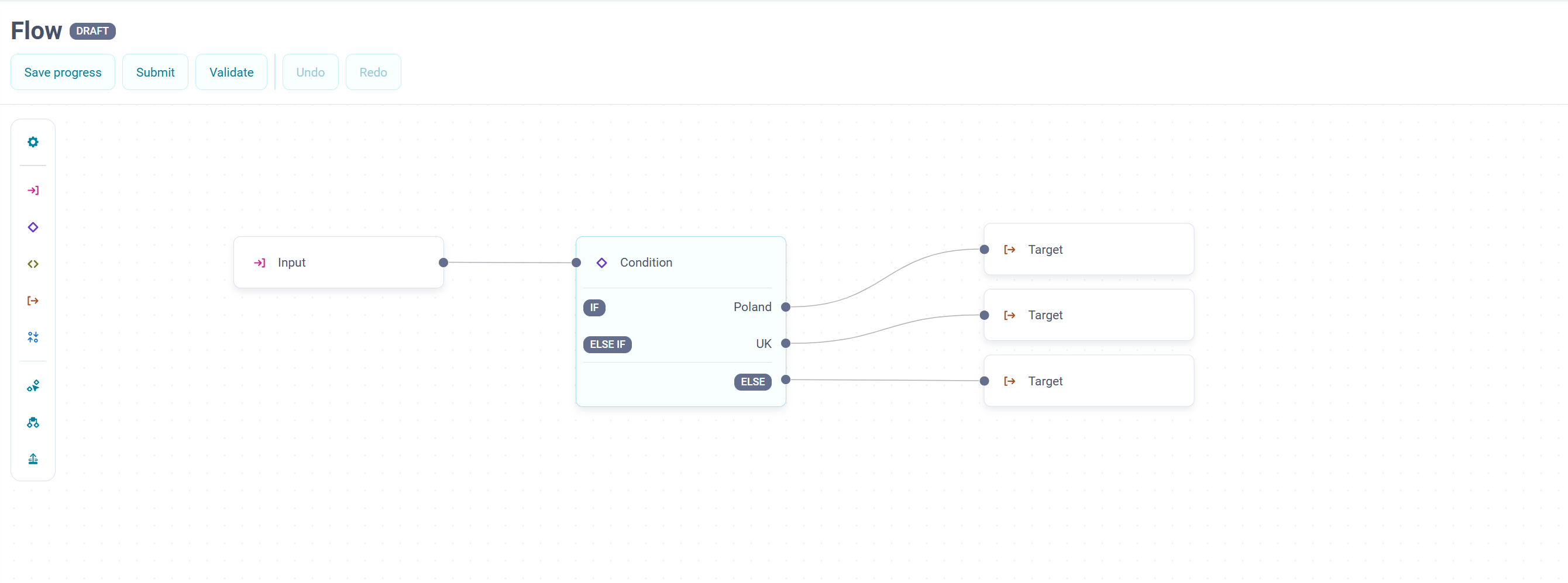
You can define as many IF conditions as you require. The conditions are considered in a hierarchical order. This means the data is first checked against condition 1, then condition 2, etc. going through all conditions on the list. Finally, once all conditions have been checked any remaining data is directed to the ELSE condition, defined by default in each Condition step.
If your Flow has the Allocation step preceding the Condition step, the additional attribute used to perform allocation will not be available in the Condition step configuration.
To define the Condition step you need to select the criteria in the Criteria tab that you can see on the screenshot below:
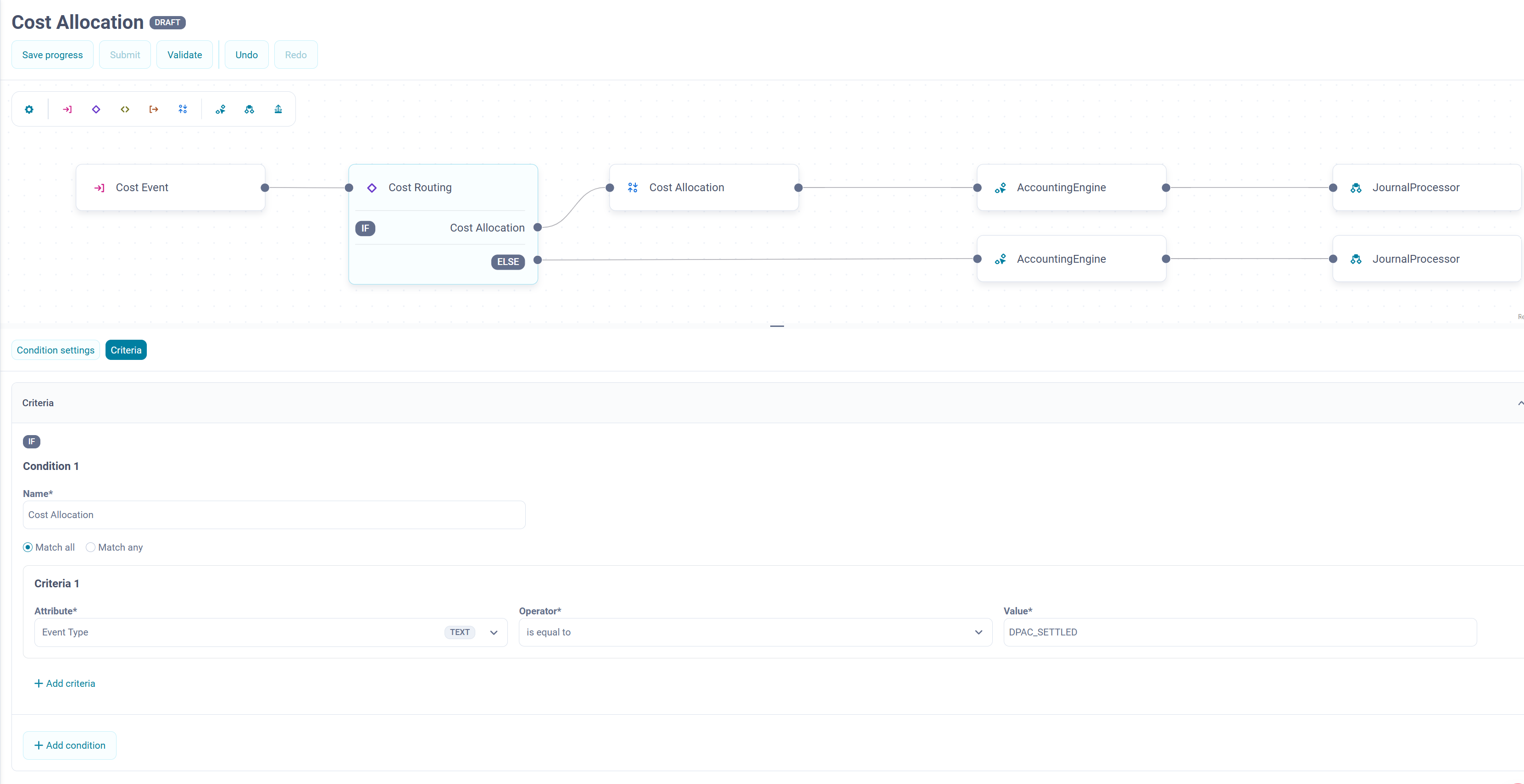
You can choose to:
- Match all
- Match any
In the Attribute drop-down list you select the attribute which will be used for the condition and in the Value textbox you type the value of the selected attribute you want to be used for the condition.
You have to specify a minimum of one Condition and a minimum of one Criterion per defined condition.
The Operator drop-down list contains the standard list of operators available in Fynapse, is equal to, is not equal to, etc.
Allocation Step
The Allocation step allows you to divide a transaction amount and allocate the partial amounts based on a selected criterion, such as cost centre, department, product, etc.
The way this works in Fynapse is the input Transaction Event from the Input step is divided into multiple Transaction Events with partial amounts divided based on the defined driver attribute from a Reference Entity.
Below is a screenshot of a sample configuration of the Allocation step:
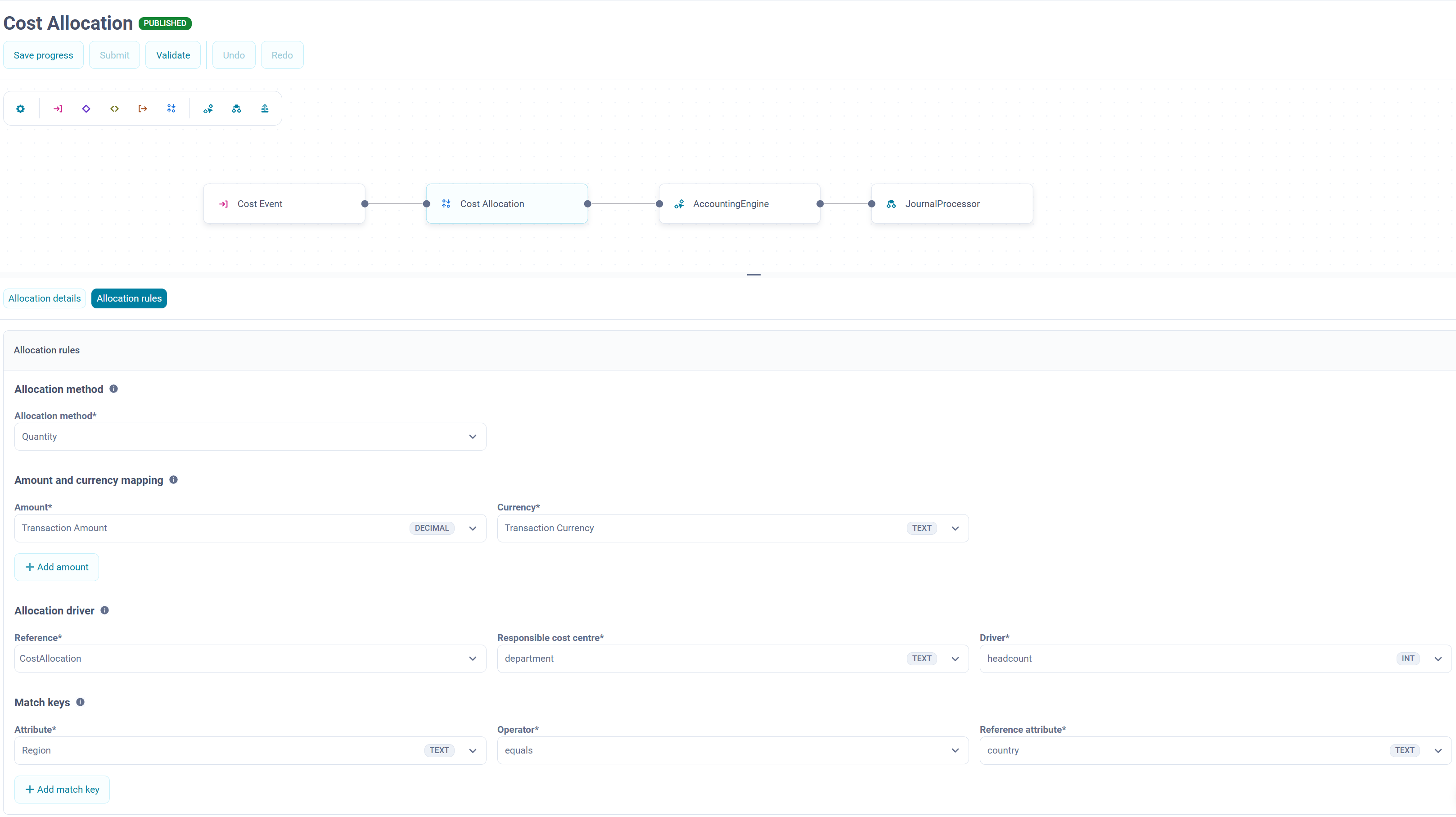
The data are allocated on quantitative or percentage basis, which you select in the Allocation method drop-down list.
You select the Amount and Currency of the transactions that will be allocated from their respective drop-downs. You have to choose a minimum of one mapping, but you can choose as many as required if you need more.
Then you configure the allocation driver, i.e. define the reference Data Entity which contains the source attributes for Responsible cost centre, which is the attribute that defines the cost centre which owns the allocated amount and Driver, which is used to calculate the allocation.
Calculation and Rounding
Allocation calculations are performed based on the following formula:
(amount*driver)/sum of drivers
For example:
Amount = 1,000
Driver = 10
Sum of drivers - 40
Then (1000*10)/40 = 250
The amounts are rounded based on the rounding specified for the given currency (0,2,3 decimals). The rounding offset is added to the Transaction Event with the largest amount.
For example:
Using Headcount as the Driver:
Let’s allocate an incoming Transaction Event with Amount 133.37
As we can see, the total after allocation calculations is 133.38, while the original Amount was 133.37. Therefore, we need to offset the difference, which is:
133.37 - 133.38 = -0.01
with the highest Amount, in this case this will be the allocated Amount for Product, 66.69, so the final Allocation amounts will be:
Finally, you choose the Match keys, which will be the filtering criteria for the incoming records. You select an attribute from the Entity used as input for Transaction Events, the Operator which will determine the matching rule, and the Reference attribute, i.e. the attribute from the Reference Entity that will be matched with the attribute from the input Entity.
The amounts are rounded based on the rounding specified for the given currency (0,2,3 decimals). The rounding offset is added to the Transaction Event with the largest amount.
Script Step
The Script step allows you to define different processes, such as lookups, calculations, and data transformations, using Python code. The Script step has a built-in standard Python library and access to the following data stored in Fynapse:
- Reference Data
- Non-working days defined in Business Calendars
- Fiscal periods defined in Fiscal Calendars
AI Assistant
The Script step is equipped with an AI assistant that generates calculation rules from natural language prompts and provides information about Entities, e.g. attributes defined in Reference Entities, and variables generated by other Flow steps.
Please note that generative AI technology in general is still maturing and even with high quality descriptions, the rules generated may not always be correct. Therefore, always check what it has generated.
The AI assistant uses publish and lookup built-in functions. For more details, refer to Built-in Python Functions and Types.
The AI assistant has two options for integrating the code it generated:
- Use - substitutes the code you defined with the code it generated
- Append - adds the generated code at the end to the code editor
The AI assistant is released as a beta version for evaluation purposes only and is not recommended for production use. Please note that once you enable the Assistant, such data as Data Entity structure, Fiscal and Business Calendar names will be sent to the third party provider of the implemented AI model. Per the provider’s policy, your data will be temporarily stored for monitoring, to prevent abuse or misuse. Please ensure the use of the Fynapse Flow Assistant aligns with your company’s internal policies.
The conversation history with the AI assistant is saved in the chat window. The conversation history is maintained in one chat for all Script blocks you add to a given Flow. It is possible to delete the history of conversation with the AI assistant by clicking the trash icon above the chat window.
Built-in Functions and Types
The list of built-in function and types is available here: Built-in Python Functions and Types.
Moreover, the Script step has access to all output data created by each of the preceding steps in the Flow, such as:
- Input step - Transaction Event records ingested into Fynapse via an ingestion file or REST API
- Preceding Script steps - outputs generated by the Script step defined in the given Script step
Mapping between Python Types and Entity Attribute Types
When variables and inputs are made available to Python code they are mapped to Python types.
Making Variables Produced in Python Script Available to Subsequent Steps
All variables defined in Python script are local to the Script step. This means that you cannot directly reference a variable.
Consider the following Flow, that is composed of two Script steps (A and B):

No local variable created in the Step A is going to be visible in Step B and the Target.
In order to be able to use any of the values produced in Step A, a Flow variable needs to be created. This can be done by declaring an output in a Script step.
Outputs are named and have types assigned.
Below is a list of available output types:
Once an output is declared it needs to be published as a variable in a Script. To publish a value to an output the following function needs to be used: publish.
Example:
For each input record calculate the surface area of a circle with a radius supplied in the input record as circleRadius decimal attribute.
Step 1 Script:
The Script step also needs to define the following output:
Step 1 Output:
Now, when the PI output is defined in the Step 1 step, the following can be used to calculate the area of circle of which the radius is defined.
Step 2 Script:
Step 2 Output:
Exceptions Raised by Python Script
All exceptions raised in the Python script will mark the incoming record as invalid and no output from Flow is produced. The exception message will be visible in the Error Management as an Error message.
This applies to exceptions raised explicitly by the Script code, as well as any exception raised by the functions used by that code (e.g. runtime exceptions due to invalid arguments supplied to a function).
Raising an exception in script is a proper way to validate the input data.
Below is an example of such a validation:
Invalid Python Code
Python is a dynamically typed language. This means that some type of coding errors are only caught during execution of the Python script.
These errors will behave as an exception raised by Python code and will mark the incoming record as invalid and no output will be produced by Flow. A new (fixed) version of the Python script would need to be authored and published to reprocess the input record successfully.

