Okta SSO
A guide on how to configure Okta SSO
Overview
The tutorial below provides steps on how to configure Okta for SSO with OIDC.
How to Configure Okta for SSO with OIDC?
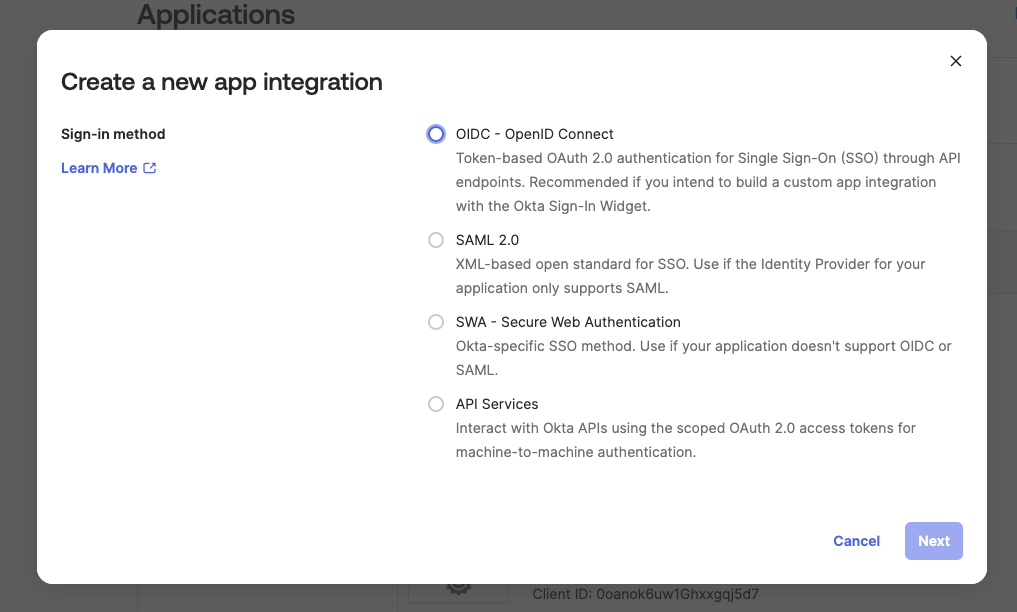
- In your Okta Admin Dashboard, go to Applications > Applications > Create App Integration.
- Select OIDC and click Next.
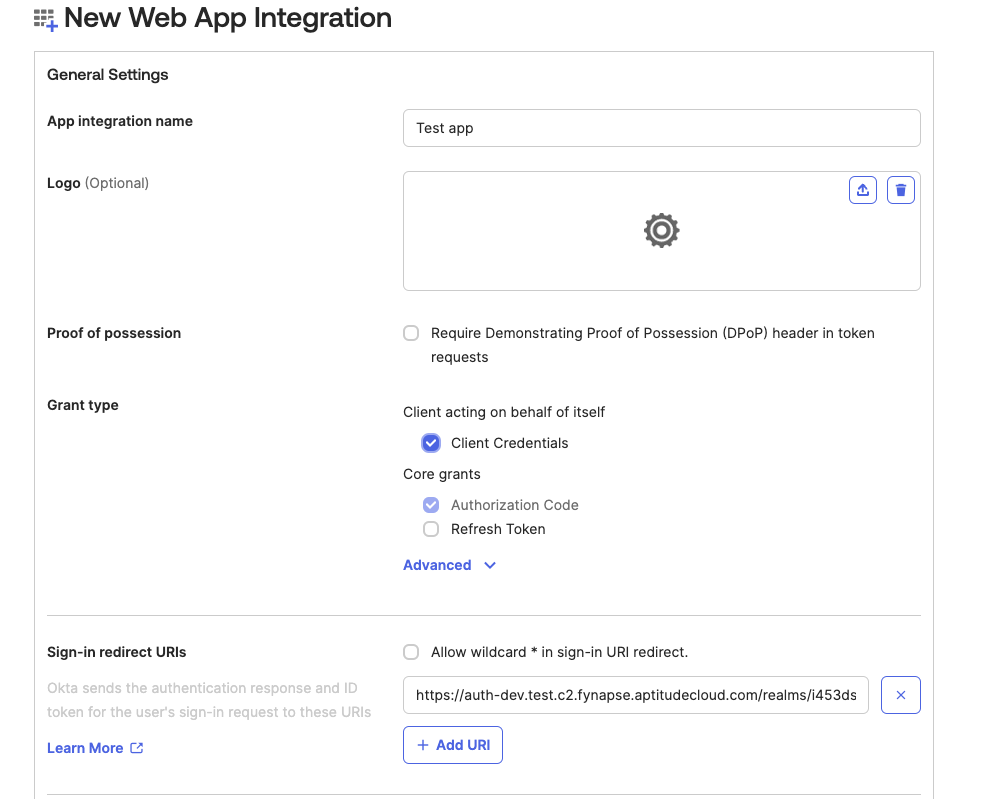
- Type the App integration name.
- Select Grant Type > Client Credentials.
- Add a Sign-in redirect URL.
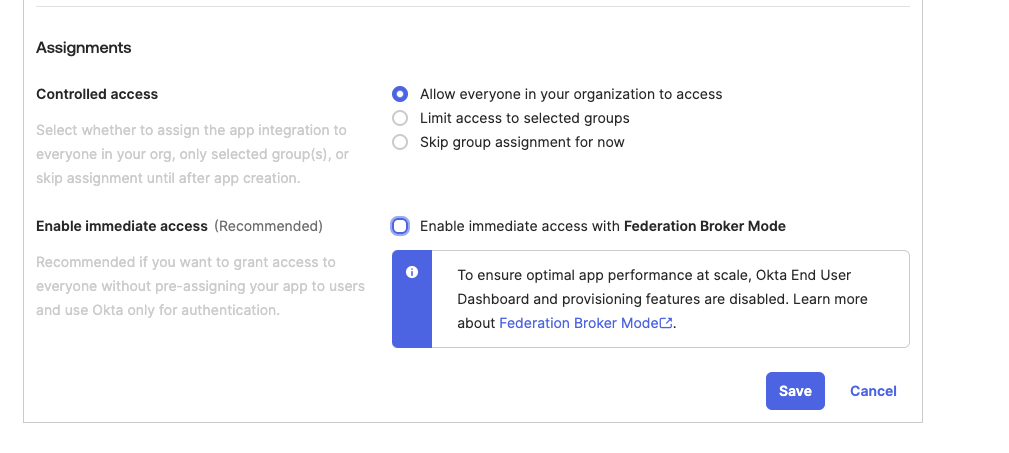
- In the Controlled access section, select a correct point, in the US case select Allow everyone in your organization to access, and click Save.
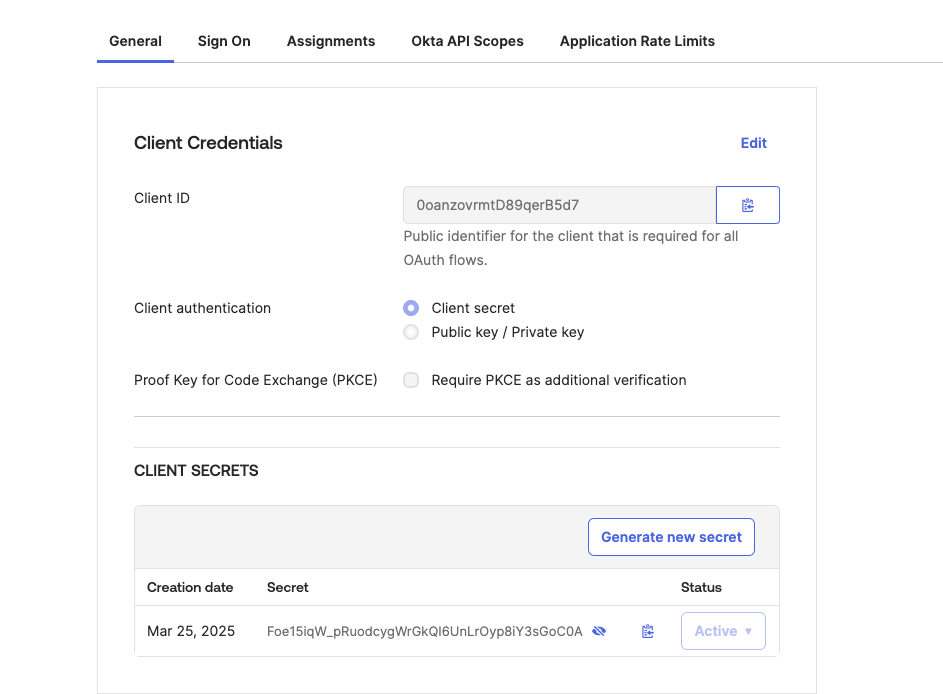
Go to your application and copy:
- Client ID
- CLIENT SECRET
Remember, the client secret has to be provided via encrypted attachment sent separately.
- Well-known Configuration URL:
https://<domain>/.well-known/openid-configuration?client_id=<client-id>
which you will need for the ticket for Aptitude Software Support.