Multiple Currencies Configuration

A comprehensive guide to multiple currencies configuration in Fynapse.

Overview

Multiple currencies can be configured either via the UI or by uploading a properly configured JSON file.

How to Configure Multiple Currencies in the UI?

To configure multiple currencies capability, you have to perform the following steps:

Note that the multiple currencies capability can only be enabled on a clean Fynapse instance prior to creating a Journal Line Definition. After you configure the Journal Line Definition, the capability to enable support for multiple currencies will be permanently disabled. Once support for multiple currencies is enabled, it cannot be disabled.

You begin by enabling the support for multiple currencies in Fynapse.

  1. Go to Configuration > System Settings.
  2. Click the Edit button.
  3. In the Multiple currencies support section, select the Enable functional and reporting currencies checkbox.
  4. Click Save to enable multiple currencies support or Cancel to discard your changes.

    If you cancel, then remember you can only enable multiple currencies capability before you start creating the Journal Line Definition.

After you enable support for multiple currencies, you can configure the reporting currencies.

Currently, this is an optional step. You can skip configuring reporting currencies if you only want to have functional amounts on Journals.

The Currencies Configuration screen will appear in the Configuration menu after support for multiple currencies is enabled.

  1. Go to Configuration > Currencies > Currencies Configuration.
  2. Click the Edit button.
  3. In the Operations section, you have to select which conversion mode for FX you want to use:
    1. Always perform FX conversion - the conversion will always be performed, regardless of whether any values are provided from upstream systems
    2. Values from upstream only - no conversion is performed, only values provided from upstream systems are passed on to Journals
    3. Prioritise values from upstream - a mixed conversion mode where if a value is provided from an upstream system it is passed on to Journals, if no value is provided Fynapse performs the conversion

      If no conversion mode is selected, the system will use the default, i.e., prioritize values from upstream.

      Remember that if you select Values from upstream only, you have to map all Functional and Reporting Amount fields for all Posting Patterns on the Accounting Rules Navigator screen. If you select Prioritise values from upstream, the Functional and Reporting Amount fields are not mandatory, but you have to map them for the Posting Patterns which will be propagating the values provided from upstream. Posting Patterns without this mapping will be performing conversion.

  4. In the Currencies section you have to select the functional currencies and, optionally reporting currencies:
    1. Select the currency code for the functional currency from the Functional currencies drop-down list. Add as many functional currencies as you need.
    2. Select the currency code for the reporting currency from the Reporting currencies drop-down list. Add as many reporting currencies as you need.
  5. In the Rate sets section you have to define the rate sets:
    1. Add a rate set by typing in the Rate sets field. You can add as many as you need.

      This name has to exactly correspond to the name in the CSV file used to load data for the Exchange Rates Entity.

  6. Click Save to save your reporting currencies or Cancel to discard your changes.

    If you cancel, then remember you can only add reporting currencies before you start creating the Journal Line Definition.

Fynapse is using the list of currency codes published by Six Group, which is available here: Visit SIX Group Data Standards in the ISO 4217 - Currency Code Maintenance section.

Once you enabled the multiple currencies capability, you can start creating your Journal Line Definition. Enabling multiple currencies requires you to configure two additional Systemic Fields, Functional Currency and Functional Amount, apart from a regular non-multiple currencies definition.

  1. Go to Configuration > Journal Line Definition.
  2. Click the Edit button.
  3. Follow the instructions for Journal Line Definition and remember to configure the multiple currencies-specific Systemic Fields:
    1. Functional Currency
    2. Functional Amount
    3. Reporting Amount Currency

      You have to define the same number of Reporting Amount Currency fields to correspond to the number of reporting currencies defined on the Currency Configuration screen, e.g., if you define two currencies on the Currency Configuration screen - PLN and USD, you have to configure Systemic Fields for these two reporting currencies in the Journal Line Definition.

  4. Finish creating the Journal Line Definition.

If you are extending the Primary Key in your Journal Line Definition beyond the default systemic fields, Journal ID and Journal Line ID, you need to ensure to add this additional Primary Key field to the Dimension Sets you define. Otherwise, Fynapse will throw an error and processing of the records will not be successful.

On the Accounting Bases screen, select the source for reporting currency in the Settings section. You can choose either Transaction Currency or Functional Currency.

This will determine whether Reporting Amounts are calculated from Transaction Amounts or Functional Amounts.

This step is not required if no Reporting Currencies are configured.

The next step is to configure the Functional Currency, Reporting Currency, and Rate Set on the Subledger Node. You can do this by either:

  • Going to the Node Configurations screen where in the Accounting Bases section you:
  • Type the Functional Currency (mandatory)
  • Select the Rate Set for the Functional Currency from the drop-down list (mandatory)
  • Select the Reporting Currency from the drop-down list (optional)
  • Select the Rate Set for each defined Reporting Currency from the drop-down list (mandatory if Reporting Currency is enabled)

or

  • Going to the Accounting Bases screen where in the Used in Nodes section you:
  • Type the Functional Currency (mandatory)
  • Select the Rate Set for the Functional Currency from the drop-down list (mandatory)
  • Select the Reporting Currency from the drop-down list (optional)
  • Select the Rate Set for each defined Reporting Currency from the drop-down list (mandatory if Reporting Currency is enabled)

Fynapse is using the list of currency codes published by Six Group, which is available here:
https://www.six-group.com/en/products-services/financial-information/data-standards.html#scrollTo=section-maintenance-agency in the ISO 4217 - Currency Code Maintenance section.

Because the Accounting Bases and Node Configurations link to each other, if you configure the Functional and Reporting Currencies on one screen it will be populated on the other.

Remember, the number of Reporting Currencies defined for a Subledger Node will have to correspond to the number of Reporting Currencies defined on the relevant Posting Pattern in the Accounting Rules Navigator.

The final step is to configure the Functional Amount on the relevant DR/CR Posting Patterns.

  1. Go to Configuration > Accounting Rules Navigator.
  2. Click the Edit button.
  3. Follow the instructions for creating accounting rules and remember to configure the multiple currencies-specific Functional Amount field on the DR/CR Posting Patterns relevant for a given Business Event. Then:
    1. If you provide the Functional Amount on the Business Event, the amount will be populated in the Journal
    2. If you do not provide the Functional Amount on the Business Event, the amount will be calculated based on the Transaction Amount and the applicable exchange rate, and then populated in the Journal

      If a Business Event triggers two or more Posting Components, where one has Functional Amount configured in Posting Patterns and another one does not have the Functional Amount configured, this Business Event will be errored.

  4. If you do not configure the Functional Amount field, Fynapse will automatically calculate the Functional Amount based on the Transaction Amount and the applicable exchange rate.

    If you configure the Functional Amount only on some of the Posting Patterns, an error will be thrown.

  5. If you defined Reporting Currencies for a Subledger Node, remember to configure the same Reporting Currencies for the DR/CR Posting Patterns relevant for a given Business Event. Then, if you provide the Reporting Amount on the Business Event, the amount will be populated in the Journal.
  6. If you do not configure the Reporting Amount field, Fynapse will not populate the Reporting Amount in the generated Journal.

    If you configure the Reporting Amount only on some of the Posting Patterns, an error will be thrown.

  7. Finish creating the accounting rules.

Note that the Functional Currencies have to balance within a Journal, i.e., the total amount of Debit records must equal the total amount of Credit records.

For more details about the FX revaluation process, go to FX Revaluation.

How to Configure FX Revaluation Configuration?

  1. Go to Configuration > Currencies > FX Revaluation configuration.
  2. Click Add.
  3. In the Details section:
    1. Type a unique name for the FX revaluation configuration.
    2. You can optionally add a description.
  4. In the Account mapping section:
    1. Select if you want to define the GL Account by typing the Account numbers (Define by account numbers) or by selecting several GL Accounts grouped with a tag (Define by account tags). The tag grouping is defined in the Chart of Accounts.
      1. If you chose Define by account numbers, type the ID of the GL Account(s) for which you want to perform FX revaluation. To configure more than one GL account, press either the Enter or Return key to create a list.

        When you type the Accounts by hand, the field provides real-time validation against the Chart of Accounts.

      2. If you chose Define by account tags, select the grouping tag from the drop-down list.
    2. Select the Offset account from the Chart of Accounts in the drop-down list. This is the account which will be used to balance any offsets from the GL Account(s) you defined in the previous step.

      You cannot use the account that you configured as a GL Account.

    3. Select the Journal Code from the drop-down list, select the Journal type of the Journal generated to account the difference to be accounted on the Offset account.

      Journal Types are defined on the Journal Types screen.

    4. Use the radio button to choose whether you want to assign One rate set all configured currencies or Multiple rate sets which allows you define a different rate set for each defined currency.

      If you select Multiple rate sets, you need to define a rate set for each defined currency.

    5. If you want to create a more complex FX revaluation configuration, click Add if case to add another GL Account/Offset account mapping. To remove a mapping, use the trash icon.

      You can add as many mappings as you need.

  5. Click Save to save your configuration, or Cancel to discard.
  6. You will be prompted to write a comment for the version history. Click Save new version to save your configuration or Cancel to return to the editing mode.

How to Edit FX Revaluation Configuration?

  1. Go to Configuration > Currencies > FX Revaluation configuration.
  2. From the grid, select the configuration you want to edit and click the chevron in the Details column.
  3. Click Edit.
  4. Make any changes to the configuration you need.
  5. Click Save to save your changes, or Cancel to discard your changes.
  6. You will be prompted to write a comment for the version history. Click Save new version to save your configuration or Cancel to return to the editing mode.

How to Assign FX Revaluation Configuration?

Once you have defined FX revaluation configurations, you need to assign them to an Accounting Base for revaluation to work.

  1. Go to Configuration > Currencies > FX Revaluation assignment.
  2. Click Edit.
  3. Select the Accounting Bases/Subledger Node combination for which you want to assign a revaluation configuration, then select the configuration from the drop-down list.
  4. Multiple selection:
  5. You can also select multiple Accounting Bases using the checklist in the first column on the left.
  6. From the drop-down list at the top of the screen, select the revaluation configuration.
  7. Click the Apply for selected button.
  8. Click Save to save your changes, or Cancel to discard your changes.

On the FX Revaluation assignment screen you can click the configuration in the Revaluation Configuration column, which will redirect you to the details of the given revaluation configuration. You can also view the history of changes by clicking the View History button.

How to Configure Multiple Currencies with the JSON File?

You can configure support for multiple currencies by uploading a JSON file with additional properties into Fynapse.

If you upload a JSON file enabling support for multiple currencies to a system that did not have this capability enabled before, you will be effectively changing the configuration and will lose all processing data.

You need to add the following sections to the Configuration Data JSON file:

To enable support for multiple currencies and select one of the three available FX conversion modes:

1"foreignExchangeSettings": {
2 "enabled": true,
3 "conversionMode": "UPSTREAM_PRIORITY"
4}

There are three FX conversion modes:

  • UPSTREAM_PRIORITY - the default; a mixed conversion mode where if a value is provided from an upstream system it is passed on to Journals, if no value is provided Fynapse performs the conversion
  • CONVERSION - the conversion will always be performed, regardless of whether any values are provided from upstream systems
  • UPSTREAM - no conversion is performed, only values provided from upstream systems are passed on to Journals

If no conversion mode is selected, the system will use the default, i.e., prioritize values from upstream.

Remember that if you select UPSTREAM, you have to map all Functional and Reporting Amount fields for all Posting Patterns on the Accounting Rules Navigator screen.
If you select UPSTREAM_PRIORITY, the Functional and Reporting Amount fields are not mandatory and Posting Patterns without this mapping will always perform conversion.

1"functionalCurrencies": {
2 "currencyCodes": [
3 "PLN",
4 "GBP",
5 "EUR"
6 ]
7 }
1"reportingCurrencies": {
2 "currencyCodes": [
3 "PLN",
4 "USD"
5 ]
6 }
1"rateSets": [
2 {
3 "name": "London Close"
4 },
5 {
6 "name": "New York Close"
7 }
8 ]
1{
2"label": "Custom Functional Amount Label",
3"name": "customFunctionalAmount",
4"type": "amount",
5"role": "functionalAmount",
6"source": "input"
7},
8{
9"label": "Custom Functional Currency Label",
10"name": "customFunctionalCurrency",
11"type": "text",
12"role": "functionalCurrency",
13"source": "input"
14}

Sample Reporting Amount properties for Journal Line Definition:

1{
2"label": "Custom Reporting USD Amount Label",
3"name": "customReportingUsdAmount",
4"type": "amount",
5"role": "reportingAmount",
6"currency": "USD",
7"source": "input"
8},
9{
10"label": "Custom Reporting PLN Amount Label",
11"name": "customReportingPlnAmount",
12"type": "amount",
13"role": "reportingAmount",
14"currency": "PLN",
15"source": "input"
16}
1{
2"label": "Functional Amount Label",
3"name": "functionalAmount",
4"type": "decimal",
5"role": "attribute",
6"source": "input"
7}

Sample Reporting Amount properties for Business Event Definition:

1{
2"label": "Reporting Amount USD Label",
3"name": "reportingAmountUsd",
4"type": "decimal",
5"role": "attribute",
6"source": "input"
7},
8{
9"label": "Reporting Amount PLN Label",
10"name": "reportingAmountPln",
11"type": "decimal",
12"role": "attribute",
13"source": "input"
14}
1"accountingConfigurations": [
2 {
3 "name": "IFRS",
4 "description": "IFRS description",
5 "fiscalCalendarName": "Test Fiscal Calendar",
6 "businessCalendarName": "Test Business Calendar",
7 "dimensionSetName": "Test Dimension Set",
8 "sourceCurrency": "TRANSACTION_CURRENCY"
9 },
10 {
11 "name": "US GAAP",
12 "description": "US GAAP description",
13 "fiscalCalendarName": "Test Fiscal Calendar",
14 "businessCalendarName": "Test Business Calendar",
15 "dimensionSetName": "Test Dimension Set",
16 "sourceCurrency": "FUNCTIONAL_CURRENCY"
17 }
18 ]
"nodeConfigs": [
{
"graceDays": 0,
"graceHours": 0,
"accountingConfigName": "IFRS",
"overridePostingDate": "none",
"functionalCurrency": "GBP",
"reportingCurrencies": [
"USD",
"PLN"
],
"functionalRateSetName": "London Close",
"reportingRateSetsNames": {
"USD": "New York Close",
"PLN": "New York Close"
}
}
]
1"postingPatterns": [
2 {
3 "postingCode": "test posting code CR",
4 "amountField": "transactionAmountName",
5 "currencyField": "transactionCurrencyName",
6 "postingDateField": "effectiveDateName",
7 "amountSignage": "AUTO",
8 "debitCredit": "CR",
9 "functionalAmountField": "functionalAmount",
10 "reportingAmountFields": {
11 "PLN": "reportingAmountPln",
12 "USD": "reportingAmountUsd"
13 }
14 },
15 {
16 "postingCode": "test posting code DR",
17 "amountField": "transactionAmountName",
18 "currencyField": "transactionCurrencyName",
19 "postingDateField": "effectiveDateName",
20 "amountSignage": "AUTO",
21 "debitCredit": "DR",
22 "functionalAmountField": "functionalAmount",
23 "reportingAmountFields": {
24 "PLN": "reportingAmountPln",
25 "USD": "reportingAmountUsd"
26 }
27 }
28 ]

This step is mandatory to ensure Business Events with Functional Amount values are processed. If you configure support for multiple currencies in the JSON file, you do not have to add the Functional Amount property in the file, but you will have to add it in the screen, on the Accounting Rules Navigator screen. Otherwise, Business Events with Functional Amount values will not be processed.


For more details about the FX revaluation process, go to FX Revaluation.

1"balanceProcessing": {
2 "revaluationConfigs": [
3 {
4 "name": "RevalConfig1",
5 "description": "Revaluation Configuration 1",
6 "accountMappings": [
7 {
8 "accounts": [
9 "1111"
10 ],
11 "offsetAccount": "1111_rev1",
12 "journalTypeCode": "REV_NBP",
13 "rateSets": {
14 "globalRateSet": "London Close"
15 },
16 "accountsSelector": {}
17 }
18 ]
19 },
20 {
21 "name": "RevalConfig2",
22 "description": "Revaluation Configuration 2",
23 "accountMappings": [
24 {
25 "accounts": [
26 "2222"
27 ],
28 "offsetAccount": "2222_rev2",
29 "journalTypeCode": "REV_NBP",
30 "rateSets": {
31 "rateSetForCurrency": {
32 "EUR": "London Close",
33 "GBP": "London Close",
34 "PLN": "London Close",
35 "USD": "New York Close"
36 }
37 },
38 "accountsSelector": {}
39 }
40 ]
41 }
42 ],
43 "revaluationConfigurationAssignmentDefinition": {
44 "configurationAssignments": [
45 {
46 "accountingConfigName": "IFRS",
47 "nodeFields": {
48 "customSubledgerNodeName": "Custom Subledger Node Label element 1"
49 },
50 "configurationName": "RevalConfig1"
51 },
52 {
53 "accountingConfigName": "US GAAP",
54 "nodeFields": {
55 "customSubledgerNodeName": "Custom Subledger Node Label element 1"
56 },
57 "configurationName": "RevalConfig2"
58 }
59 ]
60 }
61}

Sample JSON file with Attributes for Multiple Currencies Support

For a detailed placement of these attributes, refer to the sample JSON below:

Remember to check if the “version” attribute is referring to a version number currently supported by Fynapse. If you are not sure about the current version number, download the JSON file from your Fynapse instance to verify prior to uploading your configuration.

1{
2 "version": "v20230211",
3 "configuration": {
4 "businessCalendars": [
5 {
6 "name": "Test Business Calendar",
7 "status": "ACTIVE",
8 "effectiveFrom": "1900-01-01",
9 "effectiveTo": "2099-12-31"
10 }
11 ],
12 "fiscalCalendars": [
13 {
14 "name": "Test Fiscal Calendar",
15 "type": "gregorian",
16 "active": true,
17 "effectiveFrom": "2025-10-02",
18 "endOfFirstYear": "2019-12-31",
19 "startYear": 2019
20 }
21 ],
22 "journalDefinition": {
23 "active": true,
24 "effectiveFrom": "2024-01-03",
25 "fields": [
26 {
27 "label": "Custom Core Date Label",
28 "name": "customCoreDate",
29 "type": "date",
30 "role": "coreDate",
31 "source": "input"
32 },
33 {
34 "label": "Custom Journal Type Label",
35 "name": "customJournalType",
36 "type": "text",
37 "role": "journalType",
38 "source": "input"
39 },
40 {
41 "label": "Description",
42 "name": "description",
43 "type": "text",
44 "role": "attribute",
45 "source": "input"
46 },
47 {
48 "label": "Custom Accounting Config Label",
49 "name": "customAccountingConfig",
50 "type": "text",
51 "role": "accountingConfig",
52 "source": "input"
53 },
54 {
55 "label": "Custom Account Label",
56 "name": "customAccount",
57 "type": "text",
58 "role": "account",
59 "source": "input"
60 },
61 {
62 "label": "Custom Transaction Amount Label",
63 "name": "customTransactionAmount",
64 "type": "amount",
65 "role": "transactionAmount",
66 "source": "input"
67 },
68 {
69 "label": "Custom Transaction Currency Label",
70 "name": "customTransactionCurrency",
71 "type": "text",
72 "role": "transactionCurrency",
73 "source": "input"
74 },
75 {
76 "label": "Custom Functional Amount Label",
77 "name": "customFunctionalAmount",
78 "type": "amount",
79 "role": "functionalAmount",
80 "source": "input"
81 },
82 {
83 "label": "Custom Functional Currency Label",
84 "name": "customFunctionalCurrency",
85 "type": "text",
86 "role": "functionalCurrency",
87 "source": "input"
88 },
89 {
90 "label": "Custom Reporting PLN Amount Label",
91 "name": "customReportingPlnAmount",
92 "type": "amount",
93 "role": "reportingAmount",
94 "currency": "PLN",
95 "source": "input"
96 },
97 {
98 "label": "Custom Reporting USD Amount Label",
99 "name": "customReportingUsdAmount",
100 "type": "amount",
101 "role": "reportingAmount",
102 "currency": "USD",
103 "source": "input"
104 },
105 {
106 "label": "Journal Id",
107 "name": "journalId",
108 "type": "uuid",
109 "role": "journalId",
110 "source": "input"
111 },
112 {
113 "label": "Custom Journal Line Id Label",
114 "name": "customJournalLineId",
115 "type": "uuid",
116 "role": "lineId",
117 "source": "input"
118 },
119 {
120 "label": "Custom Reverses Label",
121 "name": "customReverses",
122 "type": "uuid",
123 "role": "reverses",
124 "source": "input"
125 },
126 {
127 "label": "Custom Reversed by Label",
128 "name": "customReversedBy",
129 "type": "uuid",
130 "role": "reversedBy",
131 "source": "input"
132 },
133 {
134 "label": "Custom Journal Line No",
135 "name": "customJournalLineNo",
136 "type": "integer",
137 "role": "journalLineNo",
138 "source": "input"
139 },
140 {
141 "label": "Custom Ingestion Id Label",
142 "name": "customIngestionId",
143 "type": "text",
144 "role": "ingestionId",
145 "source": "input"
146 },
147 {
148 "label": "Custom Subledger Node Label",
149 "name": "customSubledgerNodeName",
150 "type": "text",
151 "role": "node",
152 "source": "input"
153 }
154 ],
155 "primaryKeys": [
156 "journalId",
157 "customJournalLineId"
158 ]
159 },
160 "businessEventDefinition": {
161 "active": true,
162 "effectiveFrom": "2024-01-03",
163 "attributes": [
164 {
165 "label": "Event Type Label",
166 "name": "eventTypeName",
167 "type": "text",
168 "role": "event_type",
169 "source": "input"
170 },
171 {
172 "label": "Effective Date Label",
173 "name": "effectiveDateName",
174 "type": "date",
175 "role": "effective_date",
176 "source": "input"
177 },
178 {
179 "label": "Amount Type Label",
180 "name": "transactionAmountName",
181 "type": "decimal",
182 "role": "attribute",
183 "source": "input"
184 },
185 {
186 "label": "Currency Label",
187 "name": "transactionCurrencyName",
188 "type": "text",
189 "role": "attribute",
190 "source": "input"
191 },
192 {
193 "label": "Custom Subledger Node Label",
194 "name": "customSubledgerNodeName",
195 "type": "text",
196 "role": "node",
197 "source": "input"
198 },
199 {
200 "label": "Functional Amount Label",
201 "name": "functionalAmount",
202 "type": "decimal",
203 "role": "attribute",
204 "source": "input"
205 },
206 {
207 "label": "Reporting Amount USD Label",
208 "name": "reportingAmountUsd",
209 "type": "decimal",
210 "role": "attribute",
211 "source": "input"
212 },
213 {
214 "label": "Reporting Amount PLN Label",
215 "name": "reportingAmountPln",
216 "type": "decimal",
217 "role": "attribute",
218 "source": "input"
219 },
220 {
221 "label": "Description",
222 "name": "description",
223 "type": "text",
224 "role": "attribute",
225 "source": "input"
226 }
227 ]
228 },
229 "businessEventTypes": [
230 {
231 "name": "ABC",
232 "description": "ABC description"
233 }
234 ],
235 "nodeValues": [
236 {
237 "fieldName": "customSubledgerNodeName",
238 "values": [
239 "Custom Subledger Node Label element 1",
240 "Custom Subledger Node Label element 2"
241 ]
242 }
243 ],
244 "dimensionSets": [
245 {
246 "name": "Test Dimension Set",
247 "description": "Test Dimension Set description",
248 "attributes": [
249 "customAccountingConfig",
250 "customAccount",
251 "customTransactionCurrency",
252 "customSubledgerNodeName"
253 ]
254 }
255 ],
256 "accountingConfigurations": [
257 {
258 "name": "IFRS",
259 "description": "IFRS description",
260 "fiscalCalendarName": "Test Fiscal Calendar",
261 "businessCalendarName": "Test Business Calendar",
262 "dimensionSetName": "Test Dimension Set",
263 "sourceCurrency": "TRANSACTION_CURRENCY"
264 },
265 {
266 "name": "US GAAP",
267 "description": "US GAAP description",
268 "fiscalCalendarName": "Test Fiscal Calendar",
269 "businessCalendarName": "Test Business Calendar",
270 "dimensionSetName": "Test Dimension Set",
271 "sourceCurrency": "FUNCTIONAL_CURRENCY"
272 }
273 ],
274 "nodes": [
275 {
276 "fields": {
277 "customSubledgerNodeName": "Custom Subledger Node Label element 1"
278 },
279 "nodeConfigs": [
280 {
281 "graceDays": 0,
282 "graceHours": 0,
283 "overridePostingDate": "none",
284 "accountingConfigName": "US GAAP",
285 "functionalCurrency": "PLN",
286 "functionalRateSetName": "New York Close"
287 },
288 {
289 "graceDays": 0,
290 "graceHours": 0,
291 "overridePostingDate": "none",
292 "accountingConfigName": "IFRS",
293 "functionalCurrency": "GBP",
294 "reportingCurrencies": [
295 "USD",
296 "PLN"
297 ],
298 "functionalRateSetName": "London Close",
299 "reportingRateSetsNames": {
300 "PLN": "New York Close",
301 "USD": "New York Close"
302 }
303 }
304 ],
305 "timeZone": "Europe/Warsaw"
306 }
307 ],
308 "postingComponents": [
309 {
310 "code": "PLFEES",
311 "journalType": "Test Permanent Journal Type",
312 "description": "PLFEES description",
313 "accountingConfigName": "IFRS",
314 "postingPatterns": [
315 {
316 "postingCode": "test posting code CR",
317 "amountField": "transactionAmountName",
318 "currencyField": "transactionCurrencyName",
319 "postingDateField": "effectiveDateName",
320 "amountSignage": "AUTO",
321 "debitCredit": "CR",
322 "functionalAmountField": "functionalAmount",
323 "reportingAmountFields": {
324 "PLN": "reportingAmountPln",
325 "USD": "reportingAmountUsd"
326 }
327 },
328 {
329 "postingCode": "test posting code DR",
330 "amountField": "transactionAmountName",
331 "currencyField": "transactionCurrencyName",
332 "postingDateField": "effectiveDateName",
333 "amountSignage": "AUTO",
334 "debitCredit": "DR",
335 "functionalAmountField": "functionalAmount",
336 "reportingAmountFields": {
337 "PLN": "reportingAmountPln",
338 "USD": "reportingAmountUsd"
339 }
340 }
341 ]
342 }
343 ],
344 "postingComponentIdentifications": [
345 {
346 "businessEventTypeName": "ABC",
347 "postingComponents": [
348 {
349 "postingComponentCode": "PLFEES"
350 }
351 ]
352 }
353 ],
354 "accountLookups": [
355 {
356 "postingCode": "test posting code CR",
357 "accountLookupPatterns": [
358 {
359 "account": "000002"
360 }
361 ]
362 },
363 {
364 "postingCode": "test posting code DR",
365 "accountLookupPatterns": [
366 {
367 "account": "000001"
368 }
369 ]
370 }
371 ],
372 "journalMapping": {
373 "fieldsMapping": [
374 {
375 "journalField": "description",
376 "mappingType": "FIELD",
377 "field": "description"
378 }
379 ]
380 },
381 "journalTypes": [
382 {
383 "code": "Test Permanent Journal Type",
384 "description": "Test Permanent Journal Type description",
385 "behavior": "PERMANENT"
386 },
387 {
388 "code": "REV_NBP",
389 "description": "Reversal Next BD",
390 "behavior": "REVERSING",
391 "reversingDate": "NEXT_BUSINESS_DAY"
392 }
393 ],
394 "unpostedJournalsFeatureFlag": {
395 "unpostedJournalsEnabled": true
396 },
397 "foreignExchangeSettings": {
398 "enabled": true,
399 "conversionMode": "UPSTREAM"
400 },
401 "functionalCurrencies": {
402 "currencyCodes": [
403 "PLN",
404 "GBP",
405 "EUR"
406 ]
407 },
408 "reportingCurrencies": {
409 "currencyCodes": [
410 "PLN",
411 "USD"
412 ]
413 },
414 "rateSets": [
415 {
416 "name": "London Close"
417 },
418 {
419 "name": "New York Close"
420 }
421 ],
422 "featureFlags": {
423 "posting-date-override": false,
424 "flow-assistant": false,
425 "new-ingest-id-format": false,
426 "workflow": false,
427 "retry-on-connection-issues": false,
428 "extracts-in-bulk": false,
429 "extract-file-download": false,
430 "flow": false
431 },
432 "balanceProcessing": {
433 "revaluationConfigs": [
434 {
435 "name": "RevalConfig1",
436 "description": "Revaluation Configuration 1",
437 "accountMappings": [
438 {
439 "accounts": [
440 "1111"
441 ],
442 "offsetAccount": "1111_rev1",
443 "journalTypeCode": "REV_NBP",
444 "rateSets": {
445 "globalRateSet": "London Close"
446 },
447 "accountsSelector": {}
448 }
449 ]
450 },
451 {
452 "name": "RevalConfig2",
453 "description": "Revaluation Configuration 2",
454 "accountMappings": [
455 {
456 "accounts": [
457 "2222"
458 ],
459 "offsetAccount": "2222_rev2",
460 "journalTypeCode": "REV_NBP",
461 "rateSets": {
462 "rateSetForCurrency": {
463 "EUR": "London Close",
464 "GBP": "London Close",
465 "PLN": "London Close",
466 "USD": "New York Close"
467 }
468 },
469 "accountsSelector": {}
470 }
471 ]
472 }
473 ]
474 },
475 "accounts": [
476 {
477 "number": "000002",
478 "name": "Account_000002"
479 },
480 {
481 "number": "000001",
482 "name": "Account_000001"
483 },
484 {
485 "number": "1111",
486 "name": "Account_1111"
487 },
488 {
489 "number": "2222",
490 "name": "Account_2222"
491 },
492 {
493 "number": "1111_rev1",
494 "name": "Account_1111_rev1"
495 },
496 {
497 "number": "2222_rev2",
498 "name": "Account_2222_rev2"
499 }
500 ]
501 }
502}

How to Create the Exchange Rate Entity?

When you switch on support for multiple currencies in Fynapse, the Exchange Rate Entity is created in the Data Structure.

The Entity consists of the following attributes:

  • Source Currency - the currency of the Transaction Amount/Functional Amount
    • Data constraint: string
  • Target Currency - the currency of the Functional Amount/Reporting Amount
    • Data constraint: string
  • Date - the date for which the rate for the given Source Currency/Target Currency combination is applied
    • Data constraint: date
    • Date format: yyyy-mm-dd; e.g. 2023-09-03
  • Rate - the exchange rate for the given Source Currency/Target Currency combination on a specific date
    • Data constraint: decimal, two decimal digits; e.g. 4.15 NOT 4.156
  • Rate Set - defines to which set of rates the given exchange rate is assigned. Each rate set can include only one exchange rate per a given currency pair.

How to Input Data into the Exchange Rate Entity?

Data is input into the Exchange Rate Entity by uploading a properly structured CSV file via the File Ingestion screen.

For more details on ingesting files into Fynapse, refer to Data Input File Ingestion.

The CSV file should consist of:

  • A header
  • Data

Below is a sample CSV file for the Exchange Rate Entity:
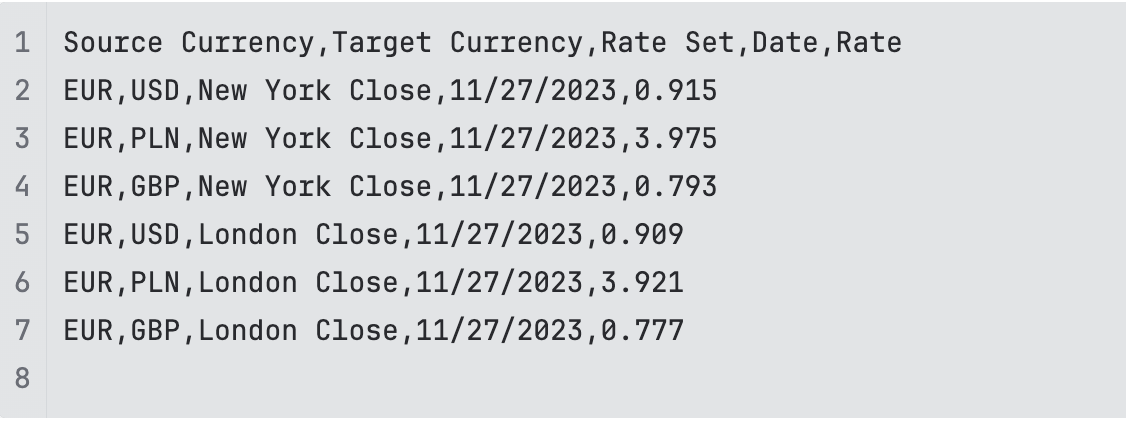
ExchangeRateSampleCSV
Sample Exchange Rate Entity

The Exchange Rate Entity is a reference data Entity, which means the data do not undergo deduplication, but rather all versions are stored in the system and the latest is used for processing.

For example, if you upload two exchange rates for a given currency combination for the same date:

Source CurrencyTarget CurrencyRate SetDateRateCSV File Input Date
PLNGBPRateSet12023-09-030.192023-08-29
PLNGBPRateSet12023-09-030.202023-08-21

Then the rate from August 29th will be used, because this CSV file is the latest.
