Chart of Accounts
Overview
A chart of accounts is a tool of finance organizations that provides a complete organized list of every account in the general ledger of a company. It enables companies to accurately categorize transactions and give interested parties, for example investors and shareholders, a clear view of a given company’s financial health.
In Fynapse, the Chart of Accounts ensures that the Accounts entered on the Accounting Rules Navigator screen are referenceable in the system and provides a check whether Journals posted in Fynapse are posted to the correct and valid Accounts.
Chart of Accounts Screen
The Chart of Accounts screen provides two views you can switch between:
- Grid with all active Accounts, which provides such information as:
- Number of the Account
- Name of the Account
- Financial Statement
- Type
- Category
- Tag
- Audit grid with all Active and Deactivated Accounts, which provides such information as:
- Number of the Account
- Name of the Account
- Financial Statement
- Type
- Category
- Tag
- Information whether the Account is active or inactive
- When was the Account activated
- When was the Account deactivated
- Who created/updated the Account
- When was the Account created/updated
It also has the features that allow you to:
- Import new Accounts from a CSV file
- Export all active Accounts to a CSV file
Configuring the Chart of Accounts
Chart of Accounts is compatible with Approval Workflow functionality.
Chart of Accounts can be configured:
- Using a CSV file
- Via Bulk Operations, in the Configuration Data JSON file
Configuring the Chart of Accounts Using a CSV File
How to Upload the Chart of Accounts in a CSV File?
- Go to Configuration > Accounting Configuration > Chart of Accounts.
- Click the Import from CSV button.
- In the dialog window, drag-and-drop the CSV file with the Chart of Accounts or click Select files and choose the file.
- Click the Upload button.
- You will be redirected to the Chart of Accounts Import Screen. The new Accounts will appear in the grid with information about the Change Type action, in this case all will have the Add label.
- Click the Submit button to complete adding the Chart of Accounts.
- You will be prompted to add a comment.
- After submitting the comment you will be automatically redirected to the Chart of Accounts screen. The Accounts listed in the CSV file will appear in the grid.
How to Edit the Chart of Accounts Using a CSV File?
You can add, remove or activate/deactivate Accounts using a CSV file. Prepare the file (see the structure in Chart of Accounts CSV File Structure) and then follow the steps below.
- Go to Configuration > Accounting Configuration > Chart of Accounts.
- Click the Import from CSV button.
- In the dialog window, drag-and-drop the CSV file with the Chart of Accounts or click Select files and choose the file.
- Click the Upload button.
- You will be redirected to the Chart of Accounts Import Screen. The new Accounts will appear in the grid with information about the Change Type action:
- ADD - when an Account is added to the Chart of Accounts or a deactivated Account is re-activated
- DEACTIVATE - when an Account is deactivated
Deactivated Accounts disappear from the grid.
You cannot deactivate an Account that is in use on the Accounting Rules Navigator.
- UPDATE - for any changes that are not deactivation
- UNCHANGED - when no changes occur for the given record
- Click the Submit button to complete adding the Chart of Accounts.
- You will be prompted to add a comment.
- After submitting the comment you will be automatically redirected to the Chart of Accounts screen. The Accounts listed in the CSV file will appear in the grid.
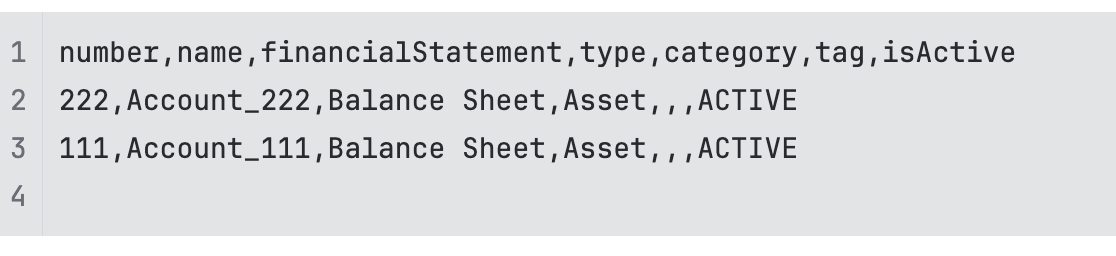
Chart of Accounts CSV File Structure
The CSV file comprises of the following information:
- Number of the Account
- Name of the Account
- Financial Statement
- Type of the Account
- Category - currently not is use, leave blank
- Tag - adding a tag allows you to group Accounts to later use e.g. in FX revaluation configuration
- isActive - determines if the Account is active or inactive, the available values are ACTIVE/INACTIVE
Below is a sample CSV file with a Chart of Accounts.
Version Control
Chart of Accounts is managed by version control. Only one draft version can be worked on at a given time. This means that if two users are editing a new version at the same time, there will be a conflict.
Configuring the Chart of Accounts via Bulk Operations
Chart of Accounts can be uploaded in the Configuration Data JSON file.
For details about the Configuration Data JSON file structure and bulk operations, refer to Configuration Data.

