Year End Cleardown
Overview
Yearend Cleardown, also known as Retained Earnings Process, is part of closing a fiscal year and a preparation for starting a new financial year.
The Yearend Cleardown functionality allows you to automate the calculation and posting from Profit and Loss (Income Statement) accounts to Retained Earnings when closing a fiscal year, ensuring accurate financial reporting, compliance with accounting standards and moving a years profit or loss to the Balance Sheet to start next financial year.
Our Yearend Cleardown functionality allows you to:
- Create Yearend Cleardown configurations where you define for which Accounts you want to perform Yearend Cleardown, define the Offset Accounts and the type of Journals that will be created on offset Accounts
- Assign Yearend cleardown configurations to Accounting Base/Subledger Node combinations
- Run the Yearend Cleardown process
How Does the Yearend Cleardown Process Work?
Retained earnings represent the cumulative net income of a company. At the end of each fiscal period, the net income is transferred from the income statement to the retained earnings account on the balance sheet. Automating this process reduces manual effort, improves accuracy, and supports compliance with the accounting standards.
The Retained earnings postings also known as cleardown are reported (visible in Trial Balance) at fiscal year start and those postings are not reported on at year end (however previous years postings are visible in the current year).
The way this works in Fynapse, you have to start by determining to which Accounts from the Chart of Accounts the Journal with the retained earnings will be posted. This is defined in Yearend Cleardown configurations, where you create rules with Accounts, Offset Accounts, and the type of Journal to be posted to the Offset Account.
Then you assign the Yearend Cleardown configurations to Accounting Base/Subledger Node combinations. This provides you with a level of granularity that allows you to efficiently manage the fiscal complexity of your organization.
Finally, once the setup is complete, the process is run, i.e. the Accounts are cleared, on the first day of the new Fiscal Year determined by the Fiscal Calendar assigned to the given Accounting Base/Subledger Node combination.
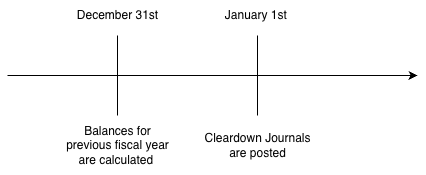
Assuming the final day of the previous fiscal year is December 31st and the first day of the new fiscal year is January 1st, the timeline is as follows:
Example
Below is a sample Yearend Cleardown configuration:
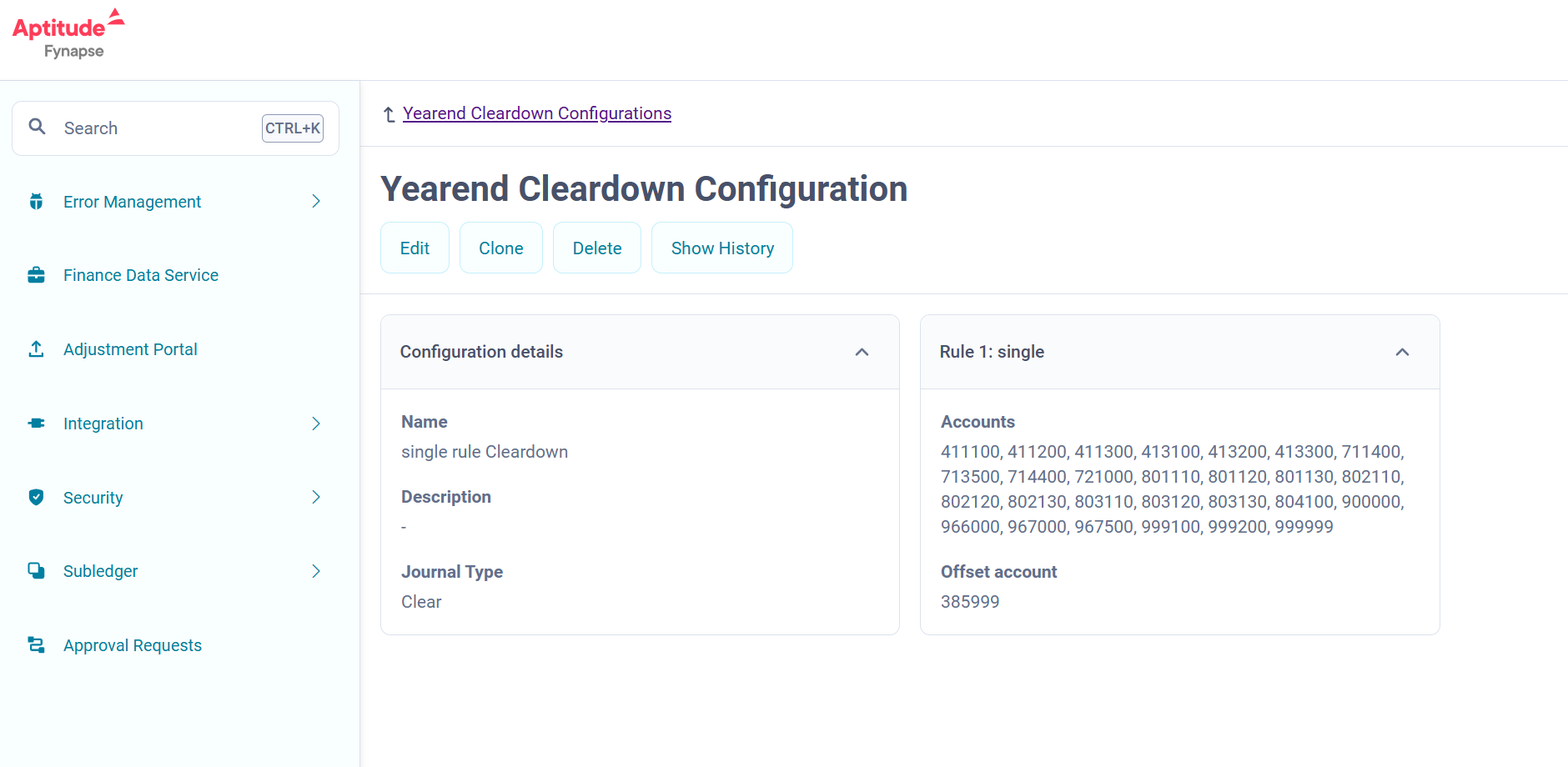
The rule states that the listed Accounts from 411100 to 999999 should be cleared to Offset Account 385999.
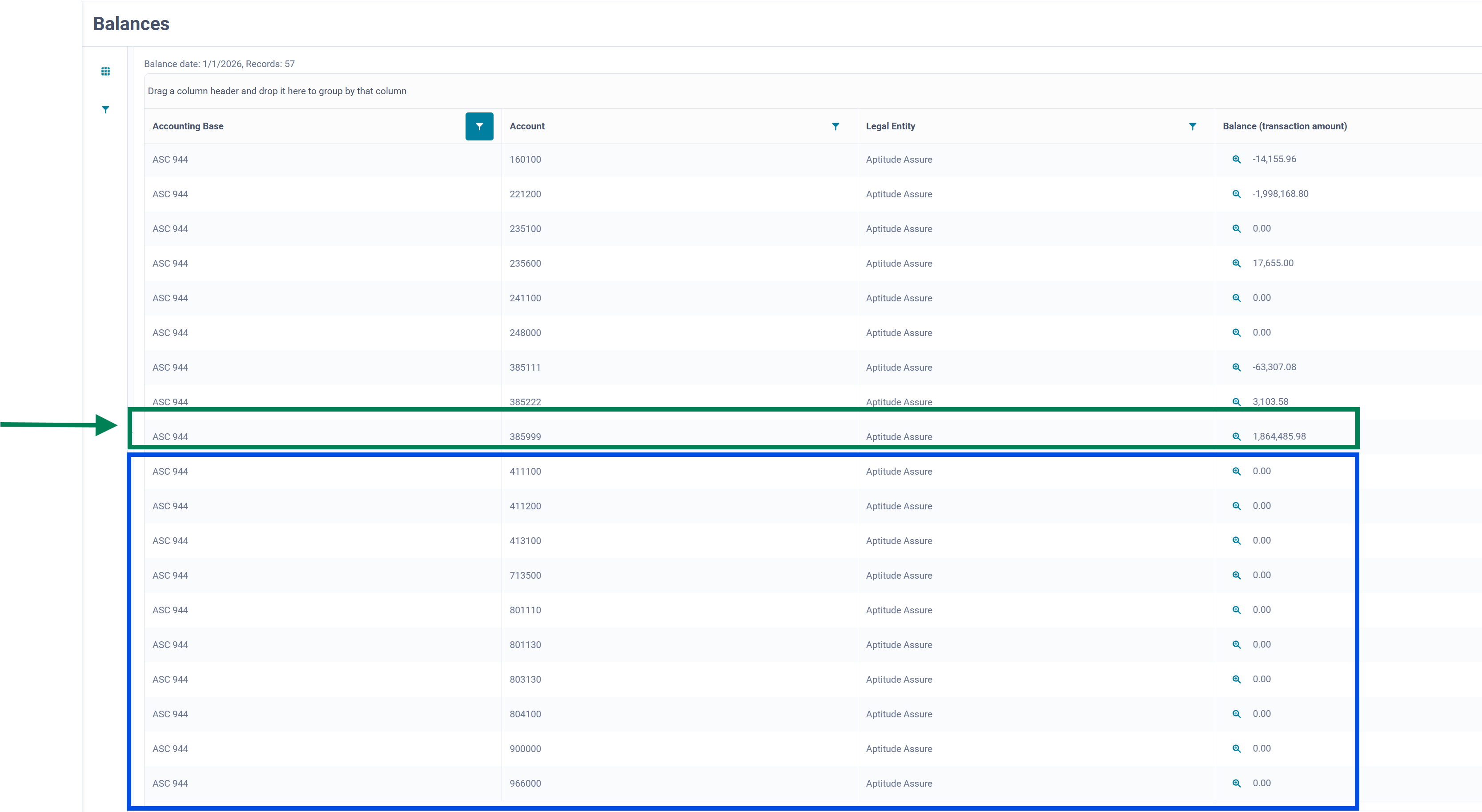
As you can see on the excerpt from the Subledger, on December 31st these Accounts had income that had to be cleared:

After the Yearend Cleardown process was run, the remaining amounts from these Accounts were cleared to the Offset Account (marked in green):
Configuration and Execution
Configuring the Yearend Cleardown Process
Yearend Cleardown Configurations Screen
On the Yearend Cleardown Configurations screen you can create new Yearend Cleardown configurations and browse the already created ones.
You can also refresh the screen using the Refresh button to see if any new changes or configurations are available.
For information on how to configure a new Yearend Cleardown configuration refer to the tutorial below.
To view the details of an existing configuration, click the configuration in the grid. You will be redirected to the details screen where you can:
- View the details of the configuration
- Edit the configuration
- Clone the configuration
- Delete the configuration
- View the history of the configuration, with version number information when it was last modified and by whom, and any comments to the changes that were made
Yearend Cleardown Assignment Screen
On the Yearend Cleardown Assignment screen you can:
- Assign configurations you created on the Yearend configurations screen to Accounting Base/Subledger Node combinations
- Browse existing configuration assignments in the grid
- Edit an existing assignment
- Use the Refresh button to see if any new changes or configuration assignments are available.
For information on how to assign a configuration, refer to the tutorial below.
Tutorials
How to Configure a Yearend Cleardown Configuration?
- Go to Configuration > Cleardown > Yearend Cleardown Configurations.
- Click Add.
- Type a unique Configuration name for the Yearend Cleardown configuration.
- From the drop-down list, select the Journal Type of the Journal that will be created and posted as the result of running the Yearend Cleardown process.
- You can optionally add a Configuration description.
- In the next section you will create rules for your configuration:
- Type a unique Name for your rule.
- Type the IDs of the Accounts for which you want to run the Yearend Cleardown process. If you want to select multiple Accounts, separate them by hitting either “Enter” or “Return” key.
When you type the Accounts, the field provides real-time validation against the Chart of Accounts.
- Select the Offset account from the Chart of Accounts in the drop-down list. This is the account which will be used to balance any offsets from the GL Account(s) you defined in the previous step.
You cannot use the account that you configured as a GL Account.
- If you want to configure multiple rules for your configuration, click Create new rule to add another one.
- Click Save to save your configuration, or Cancel to discard.
- You will be prompted to write a comment for the version history. Click Save new version to save your configuration or Cancel to return to the editing mode.
Once you have defined Yearend Cleardown configurations, you need to assign them to an Accounting Base/Subledger Node combination to be able to run the Yearend Cleardown process.
How to Assign a Yearend Cleardown Configuration?
- Go to Configuration > Cleardown > Yearend Cleardown Assignment.
- Click Edit.
- Select the Accounting Bases/Subledger Node combination for which you want to assign a Yearend Cleardown configuration, then select the configuration from the drop-down list.
- Multiple selection
- You can also select multiple Accounting Base/Subledger Node combinations using the check list in the first column on the left.
- From the drop-down list at the top of the screen, select the cleardown configuration.
- Click the Apply for selected button.
- Click Save to save your changes, or Cancel to discard your changes.
Running the Yearend Cleardown Process
Yearend Cleardown Screen
On the Yearend Cleardown screen you can run the Yearend Cleardown process.
The screen includes:
- The Run button - click it to start the Yearend Cleardown process
- The Show logs button - which will redirect you to the Yearend Cleardown Logs screen, where you can browse information about previous Yearend Cleardown runs.
- A grid which comprises:
- Information about Accounting Base and Node combinations and Cleardown configurations assigned to the given combination
- Last run status - status of the last run
- Last run for - the date for which the given Yearend Cleardown was run
- Last run at - the timestamp for when the Yearend Cleardown run was started
- Actions - the Actions column allows you to perform the following:
- Rerun - rerun the cleardown for the date in the Last run for column
- Open journals - redirects you to the Journals screen in the Subledger, where the system automatically runs a query based on the Ingestion ID of the Journals which underwent cleardown
- View errors - if a run is unsuccessful, you can view the errors in a pane that will open on the right-hand side of the screen.
Tutorials
How to Run a Yearend Cleardown Process?
Remember, the date when the Yearend Cleardown process is run is calculated based on the final day of the Fiscal Year determined by the Fiscal Calendar assigned to the given Accounting Base/Subledger Node combination. So you need to run the Yearend Cleardown process on the first day of the new fiscal year or within the Grace Days for the first period.
- Go to Subledger > Yearend Cleardown.
- Select the Accounting Base/Subledger Node combination for which you want to run the cleardown.
You can run cleardown for multiple selections.
- Click the Run button to perform Yearend Cleardown.

