Validations Screen
Overview
This article provides information on how to create custom validations for your data.
You can create validations for your data, which will allow for any set of source data to undergo simple validation or combination checking. Such user-defined validations are general, i.e. they refer to all Fynapse modules. You can define validations for Defined Entities and Protected Entities.
The subject of a validation can be:
- Data within the given Entity
- Data appended to the Entity by references in the process of enrichment
This means you can create validations verifying the reference criteria established for an Entity. Such validation references are sets of rules that determine which data from which Entity is used to enrich the base Entity is validated within a validation. This will create more complex validation rules for your data.
As a result, you can validate whether the relations you created within your data structure meet the defined criteria.
The aim of validations is to pre-empt failures that could occur later within the system, e.g.:
- Catch the data validation errors or combination failures on the input source record
- Re-check against the current set of rules when feeding external systems
For more details on how to configure validations refer to Validations.
Validations Screen
The Validations screen, which can be found after clicking the Configuration in the menu, allows you to browse through the list of validations you created in Fynapse.
The screen comprises a grid, which contains:
- Name - a name of the validation
- Entity - a name of the Entity for which the validation was created
- Type - a type of the validation
Note that Value type validation is denoted as ENUM in the JSON configuration.
- Actions - this column contains a button that allows you to download the details of a given validation
Sample details available in a downloaded JSON file
- Details - this column contains a chevron which will redirect you to the Details screen, where you can see the details of the given validation:
- Validation setup - where you can see:
- Validation name - a unique name of the validation
- Validation entity - the Entity for which the validation was created
- Validation type - a type of the validation
- Rule syntax - a definition of the validation
- Validation setup - where you can see:
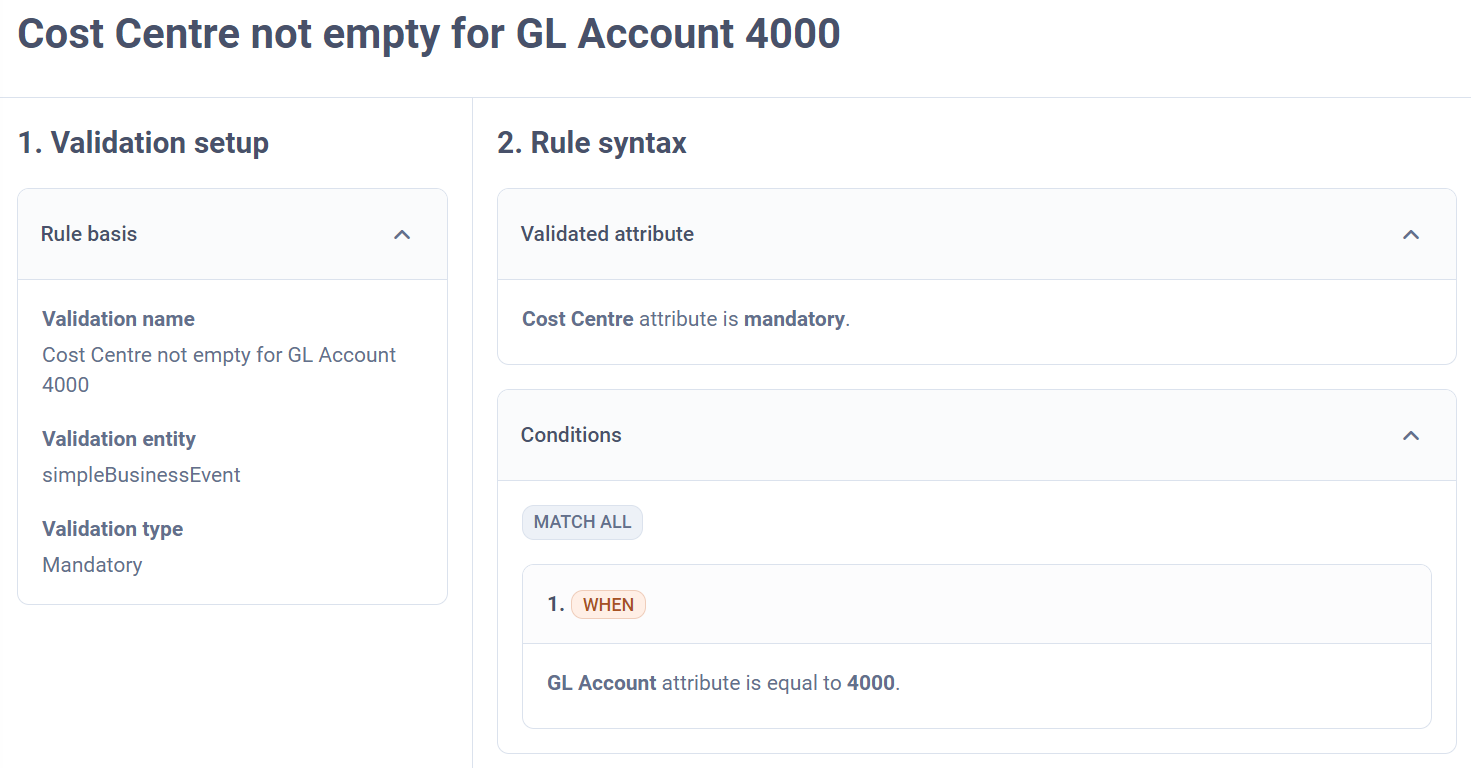
Sample Mandatory Type Validation
A Mandatory type validation with the following definition:
would be represented on the Validation Details screen like this:
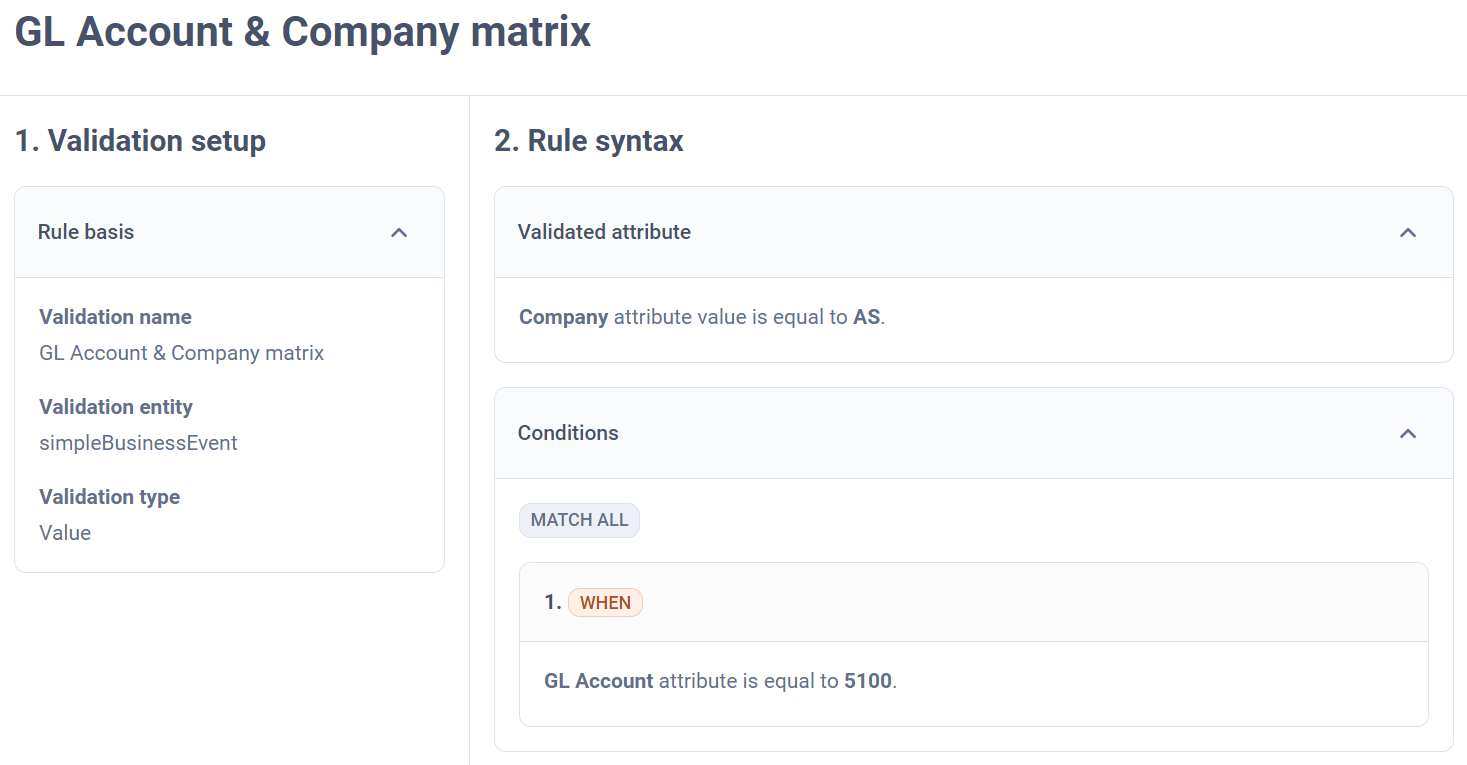
Sample Value Type Validation
A Value type validation with the following definition:
would be represented on the Validation Details screen like this:
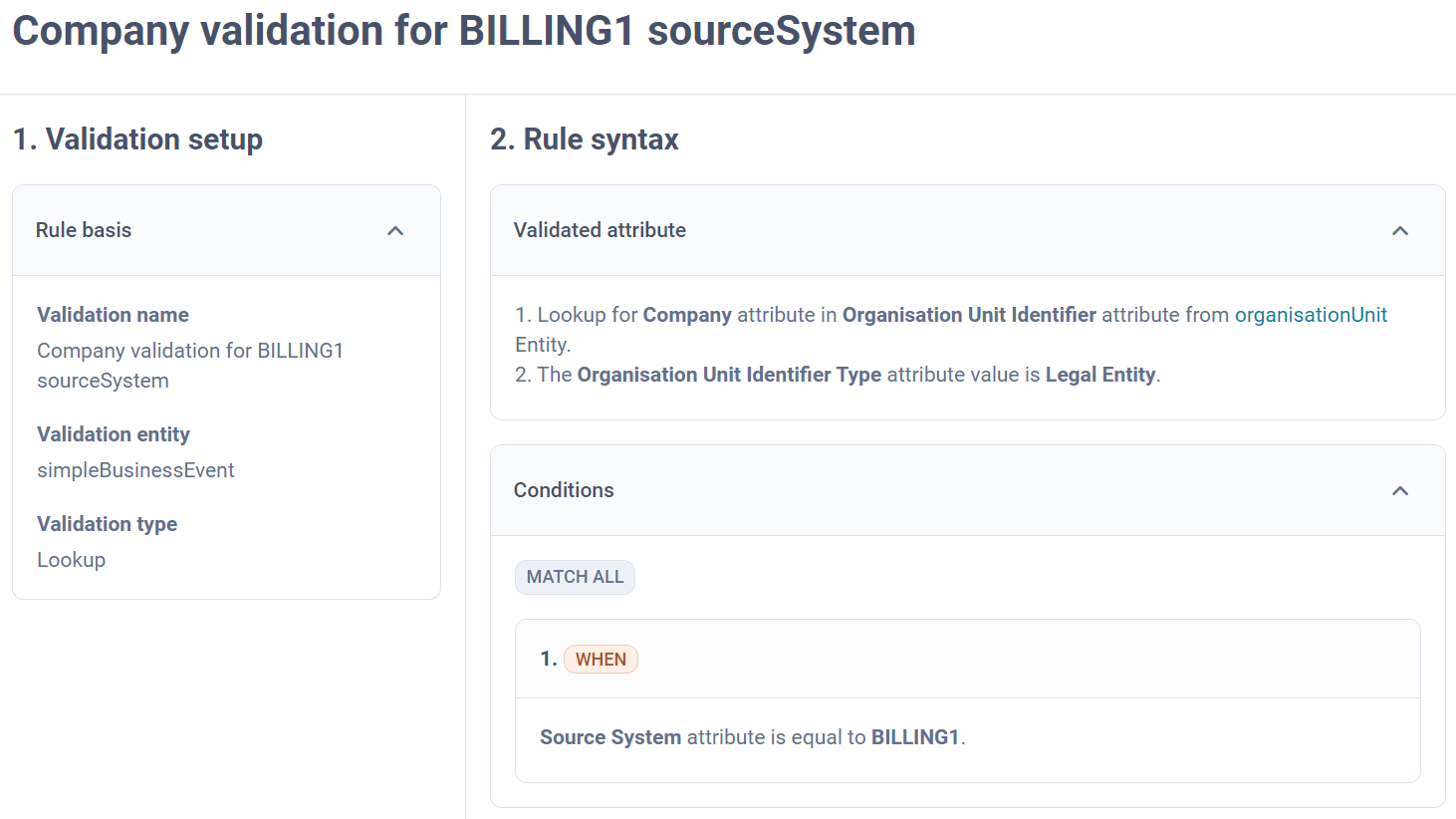
Sample Lookup Type Validation
A Mandatory type validation with the following definition:
would be represented on the Validation Details screen like this:
The Validations screen also comprises a navigation pane, which contains: