Journal Ingestion
Overview
You can ingest two types of financial records into Fynapse:
- Business Events, which are a representation of real-world transactions or life-cycle events. After ingestion, these records undergo processing in the Accounting Engine, where they are converted into Journals, sets of Debit and Credit records, which are later posted to the Subledger.
- Journals, which are sets of Debit and Credit records that do not undergo processing in the Accounting Engine. After ingestion, they are validated and posted to the Subledger.
Journals are ingested either via the File Ingestion screen or directly into the backed.
For detailed instructions how to ingest data files into Fynapse, refer to Data Input File Ingestion and Data Ingestion Using Backend.
The ingestion file should be structured in accordance with the Journal Line Definition configured in the system. The Journal Lines in the file have to be grouped into correct Journals.
When the file is ingested, the Journals are stored in a separate Protected Entity - Journal Input. This Entity is a structural copy of the Journals Entity. It is created when the first Journal is ingested. After the ingested Journals are posted, they are stored in the Subledger in the Journals Entity or Unposted Journals Entity if they are awaiting their posting date.
Also upon ingestion into the system, the Journals and Journal Lines are generated an ID, Journal ID, and Journal Line ID, respectively. These are the means of identifying a record in the system. If you want to maintain the original IDs generated by your upstream system, you can configure two optional fields in the Journal Line Definition:
- Origin Journal ID
- Origin Journal Line ID
These fields store the original ID of the record, in addition to the ID assigned by the system upon ingestion.
Below is a sample CSV file containing Journals:

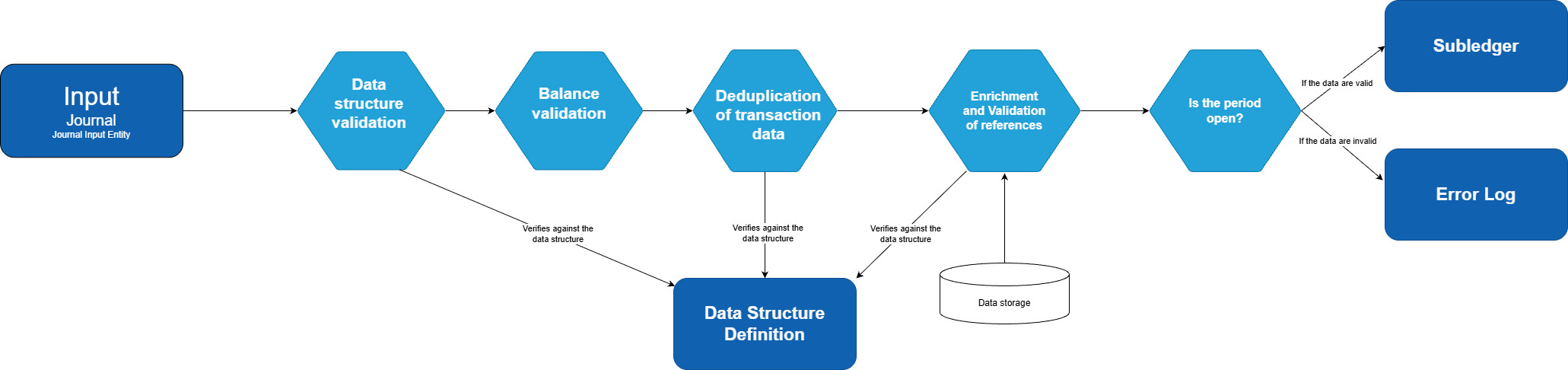
Upon ingestion the file undergoes structural validation, to ensure the data are consistent with the existing data model, i.e., the configured Journal Line Definition.
Afterwards, the system verifies whether the Journals balance. For more details about balancing Journals, refer to Balancing Journals.
Finally, the system verifies whether the Journal falls within an open period. Those with Posting Date within an open period are posted immediately. Future dated Journals are stored in the Unposted Journals Entity, until their Posting Date is due, upon this time they are posted.
Journal Ingestion Process
How Do I Know a Journal Is Errored?
A Journal can be errored when:
- It fails structural validation
- It fails the validation of references
- It is a duplicate of a Journal already in the system
- It falls within a closed period
- It does not balance
A Journal failed for causes 1 and 2 is marked as errored and submitted for reprocessing. Information about why a Journal failed can be downloaded from the Error Management screen. You can then correct the configuration which resulted in the errored Journal. The Journal will then be automatically resubmitted for reprocessing. Fynapse automatically submits all failed Journals for reprocessing according to schedules defined by users with the Fynapse System Administrator role via the Reprocessing screen. A failed record will be automatically submitted for reprocessing for a defined number of retries starting from the date it was first marked as errored. If you do not remove the cause of the error after the defined limit of retries, the record will remain in the errored status.
Currently, automatic resubmission occurs by default once a day at 8:00 UTC unless it is defined differently by a user with the Fynapse System Administrator role.
You can also trigger reprocessing manually, outside of the allocated automatic reprocessing slots.
For more details about triggering manual reprocessing, refer to Error Management.
For cause 3, there is no remedy, the record is logged as a duplicate in the Error Log and not subjected to reprocessing.
For cause 4, if the Posting Date of a failed Journal falls outside of an open period, you can enable Posting Date override which overrides the Posting Date to the first day of the current period or manually open a period.
For cause 5, you need to adjust the data in the input file and upload it again.

