Processing Summary
A guide to processing summary in Fynapse.
Overview
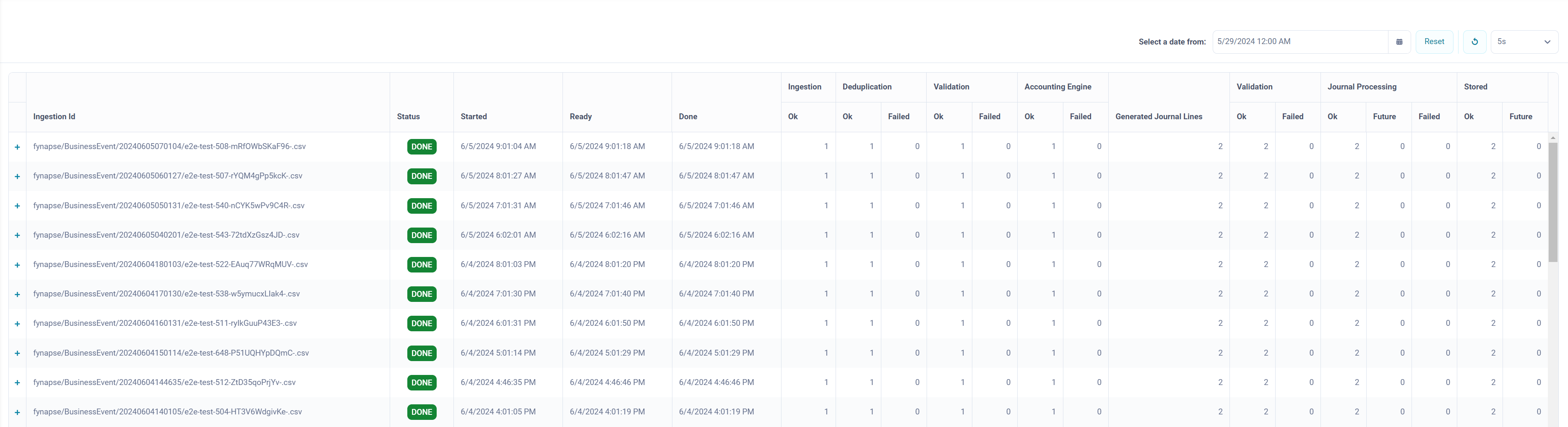
The Processing Summary screen allows you to view the progress of operations on data from a given ingestion file with Business Events.
The screen comprises a grid with following information:
- Ingestion Id - the ID of the data file which was ingested into Fynapse. (For more details about ingesting data, refer to Data Input File Ingestion.)
- Status - the status of the processing of the data from the ingestion file
- Done - processing completed, all generated Journals have been posted
- Ready - after the first run of the data through the system, all data are either errored, posted or unposted;
- Pending - the file was uploaded and processing is in progress
- Error - the file did not load on the File Ingestion screen
- Started - the timestamp of upload of the file
- Ready - the time when the first run of data through the system was completed; subsequent run throughs will not change the timestamp, only when the data reach the Done status will a new timestamp be assigned in the Done column
- Done - the time when processing was fully completed, i.e. all records have been processed and posted, all failed records have been successfully reprocessed
- Ingestion - the process of ingesting Business Events into Fynapse
- Ok - the total number of Business Events ingested from the ingestion file
- Deduplication - the process of identifying duplicated Business Events, i.e. Business Events which already exist in Fynapse
- Ok - the number of Business Events that are new Business Events, not duplicates, from the total number of ingested Business Events
- Failed - the number of deduplicated Business Events from the total number of ingested Business Events
- Validation - the process of validating ingested Business Events against defined validation rules
- Ok - the number of Business Events which comply with validation rules from the Business Events which were identified as new during the deduplication process
- Failed - the number of Business Events which failed to comply with validation rules and were errored from the Business Events which were identified as new during the deduplication process
- Accounting Engine - the processing of Business Events in accordance with setup accounting rules
- Ok - the number of Business Events processed by the Accounting Engine from the Business Events which passed the validation process
- Failed - the number of Business Events that failed processing by the Accounting Engine from the Business Events which passed the validation process
- Generated Journal Lines - the number of Journal Lines generated by the Accounting Engine from the Business Events ingested in the ingestion file
- Validation - the process of validating generated Journal Lines against defined validation rules
- Ok - the number of Journal Lines which comply with validation rules from the Journal Lines generated by the Accounting Engine
- Failed - the number of Journal Lines which failed to comply with validation rules and were errored from the Journal Lines generated by the Accounting Engine
- Journal Processing - systemic validations of generated Journal Lines
- Ok - generated Journal Lines are ready to be posted
- Future - generated Journal Lines with future Posting Date
- Failed - generated Journal Lines which failed systemic validations and awaiting reprocessing
- Stored - Journal Lines available for extraction
- Ok - the number of posted Journal Lines stored in the Journals Entity
- Future - the number of future dated Journal Lines stored in the Unposted Journals Entity. When they reach the maturity date, they will be posted and stored in the Journals Entity.
You can also expand the details section for each ingestion file which will show the number of Journal Lines generated per Subledger Entity for a given Posting Date.
Actions on the Screen
You can perform the following actions on the Processing Summary screen:
- You can select the date and time for which the data is shown by using the Select a date from setting.
- You can reset the date and time setting by clicking the Reset button. This will restore the default, i.e. the current Business Date.
- You can configure the frequency with which data is refreshed on the screen by selecting the interval in the drop-down list. By default, the interval is set to 5s.